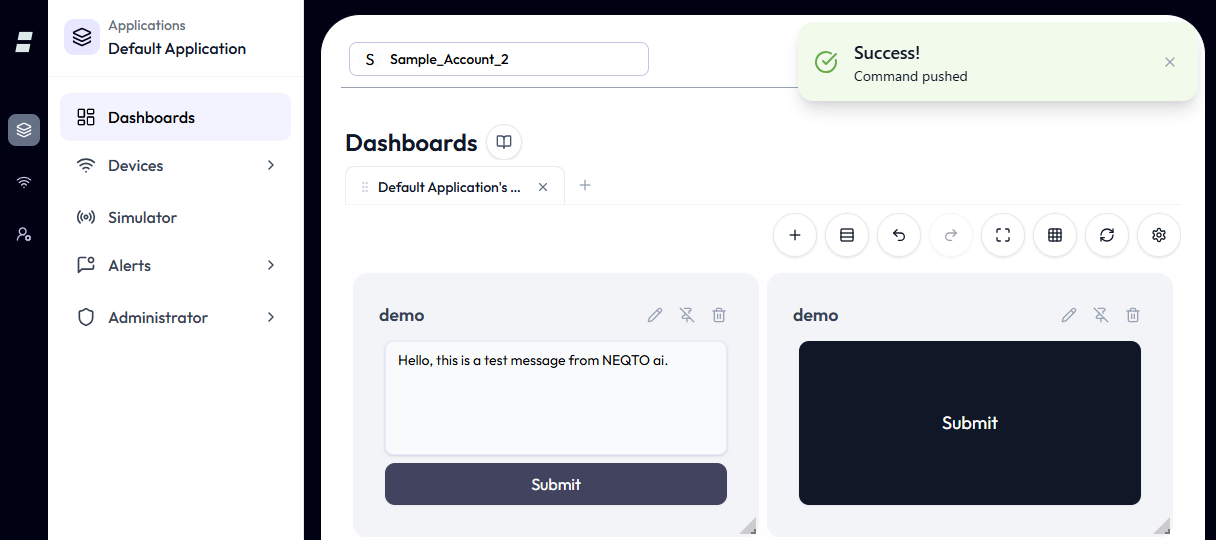
Data Push sends an arbitrary payload in real time from the NEQTO.ai server to a connected Device Endpoint. Use it to deliver commands or data to a device on demand — either directly from the Data Push screen (with a reusable send history), or from a Data Push widget placed on a dashboard for payloads you send often.
Supported Data
Three payload formats are supported, each with its own size limit.
| Format | Overview | Maximum size |
|---|---|---|
| Text | Standard text data. | 4,096 characters |
| JSON | A JSON-formatted string. Formatting whitespace and line breaks are automatically removed (minified) when the data is sent. | 4,096 characters |
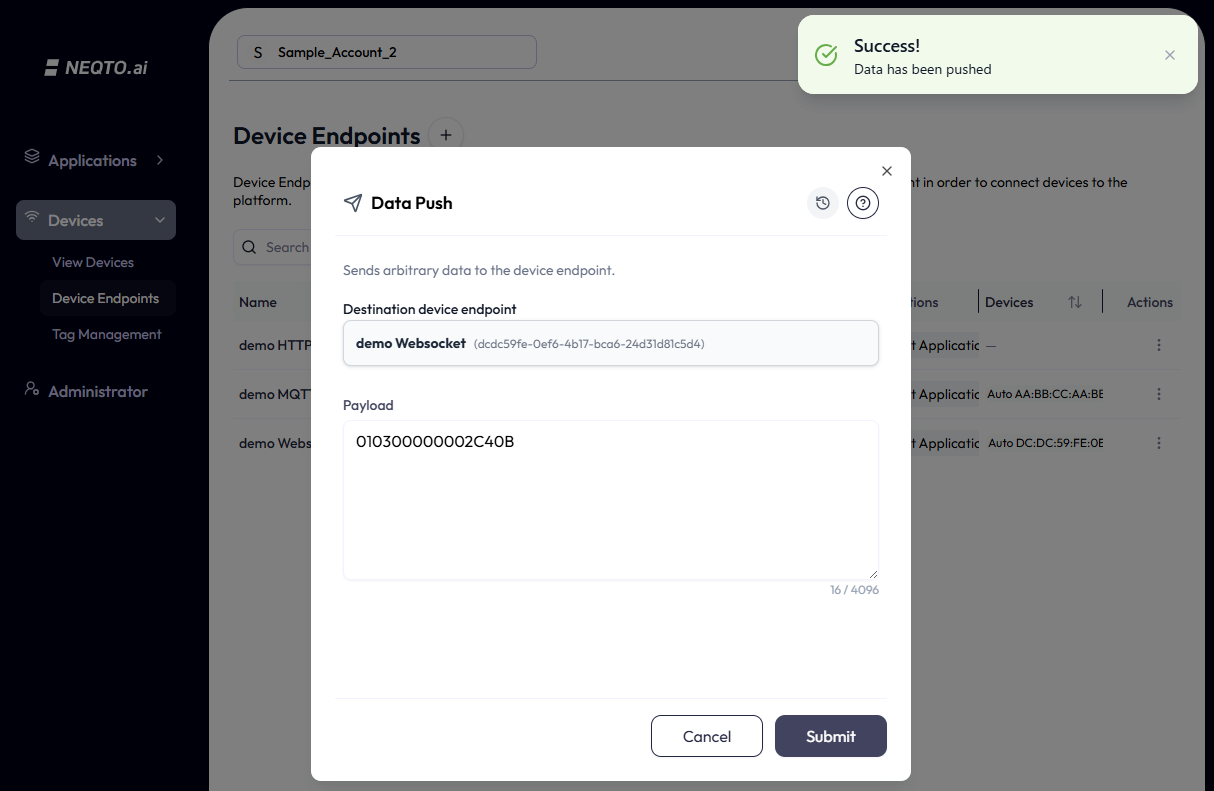
| Binary | Binary data entered as a hexadecimal (Hex) string. | 2,048 bytes |
Sending via the Data Push Screen
Open the Data Push screen
-
1Open the Device Endpoints screen (under Devices), find the target endpoint, and choose Data Push from its Action menu (the three-dot menu in the Actions column).
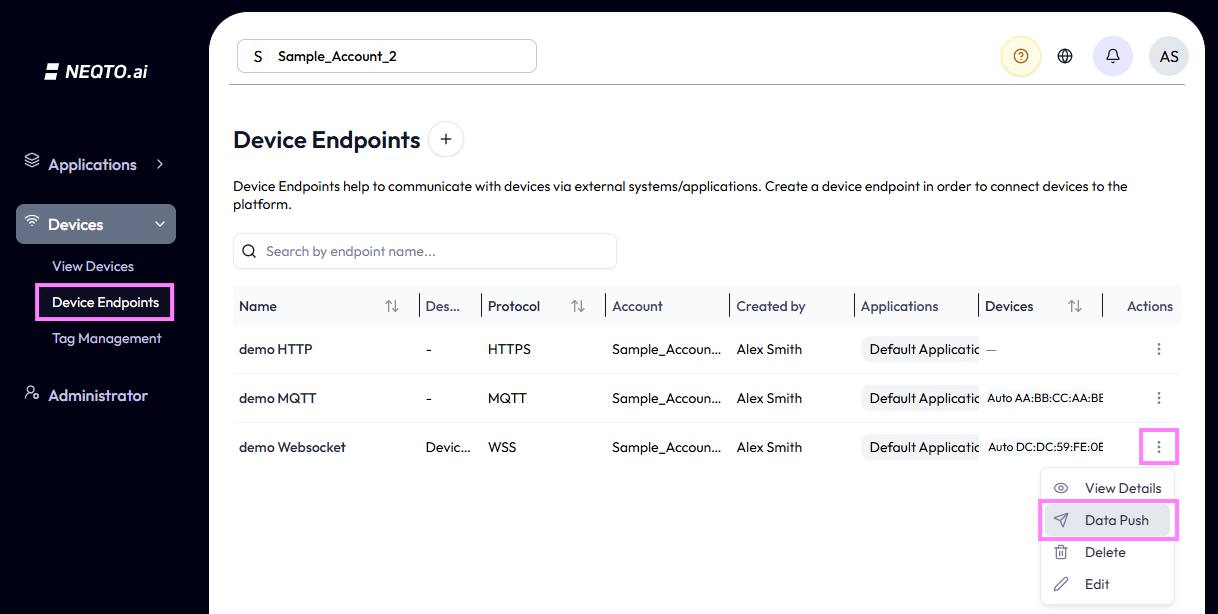
Open Data Push from the target endpoint’s Action menu. -
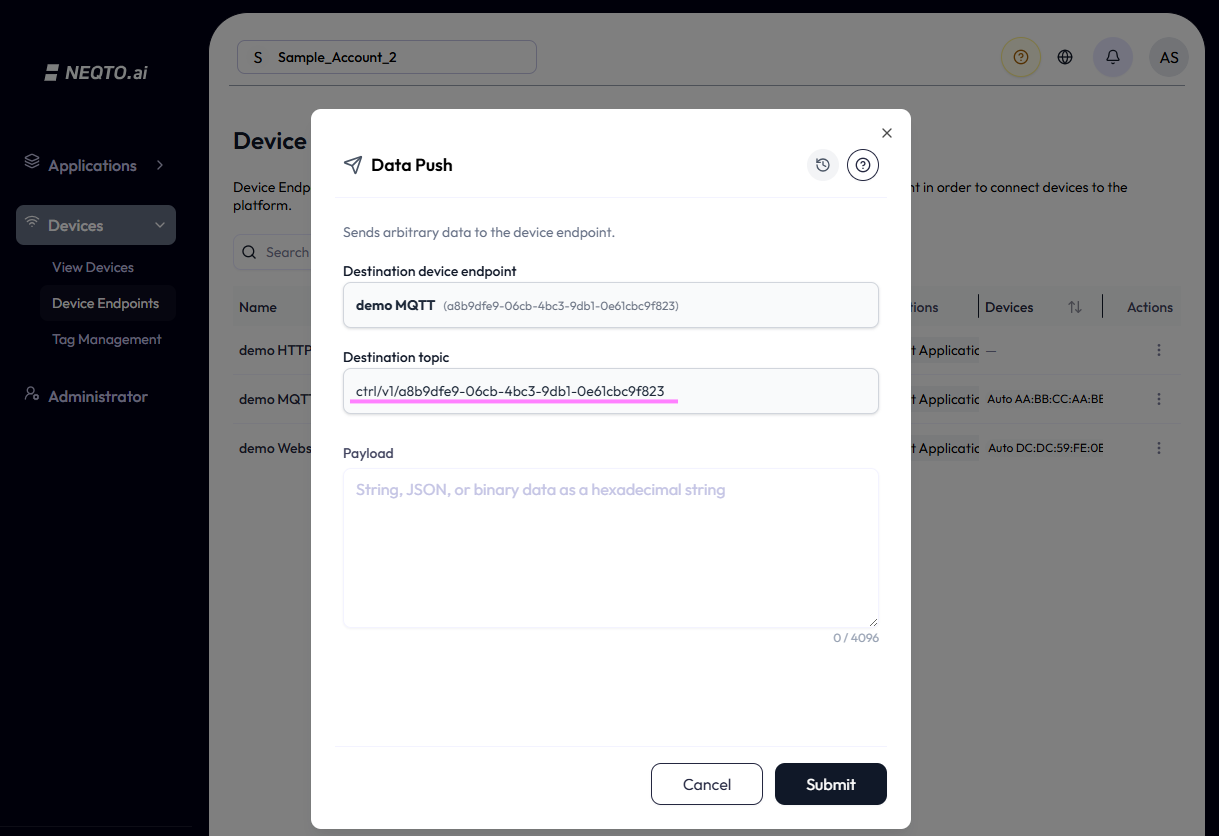
2The Data Push modal opens, showing the Destination device endpoint and a Payload field with a character counter (for example
0 / 4096) and a Submit button.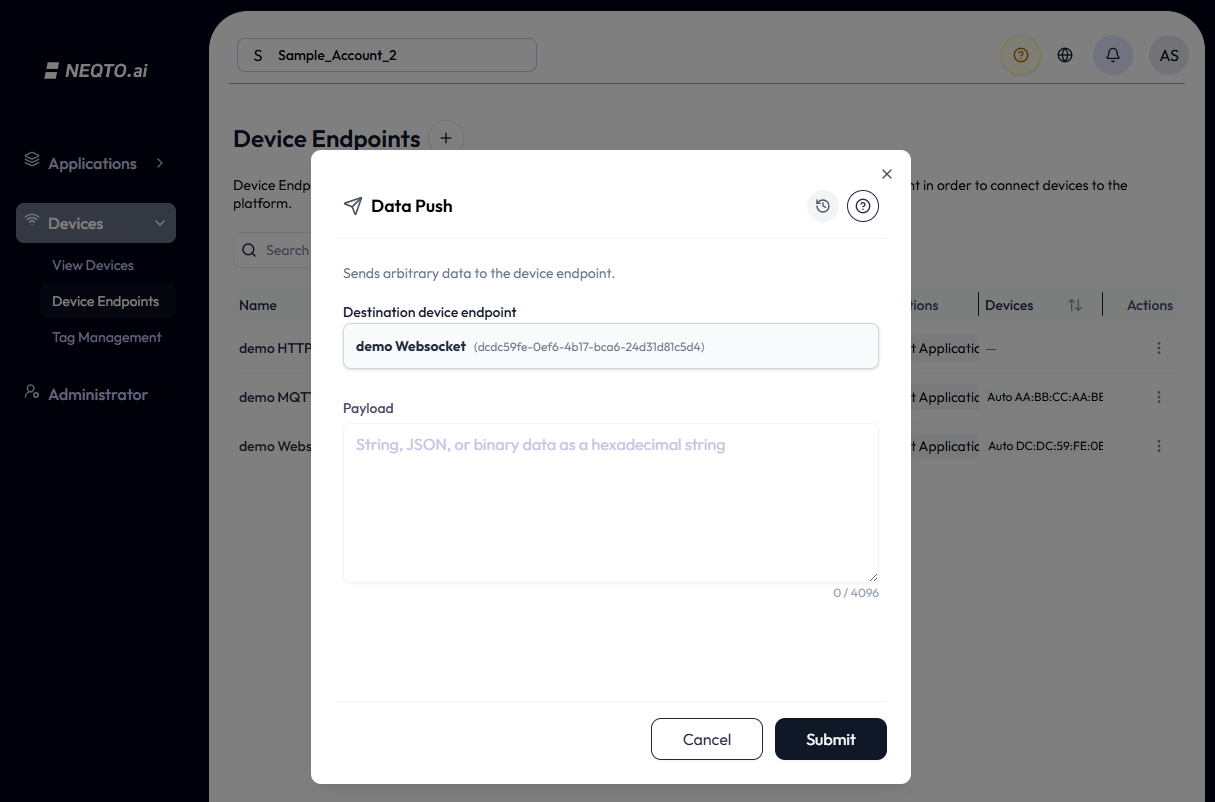
The Data Push modal, opened for the selected endpoint.
Enter a payload and send
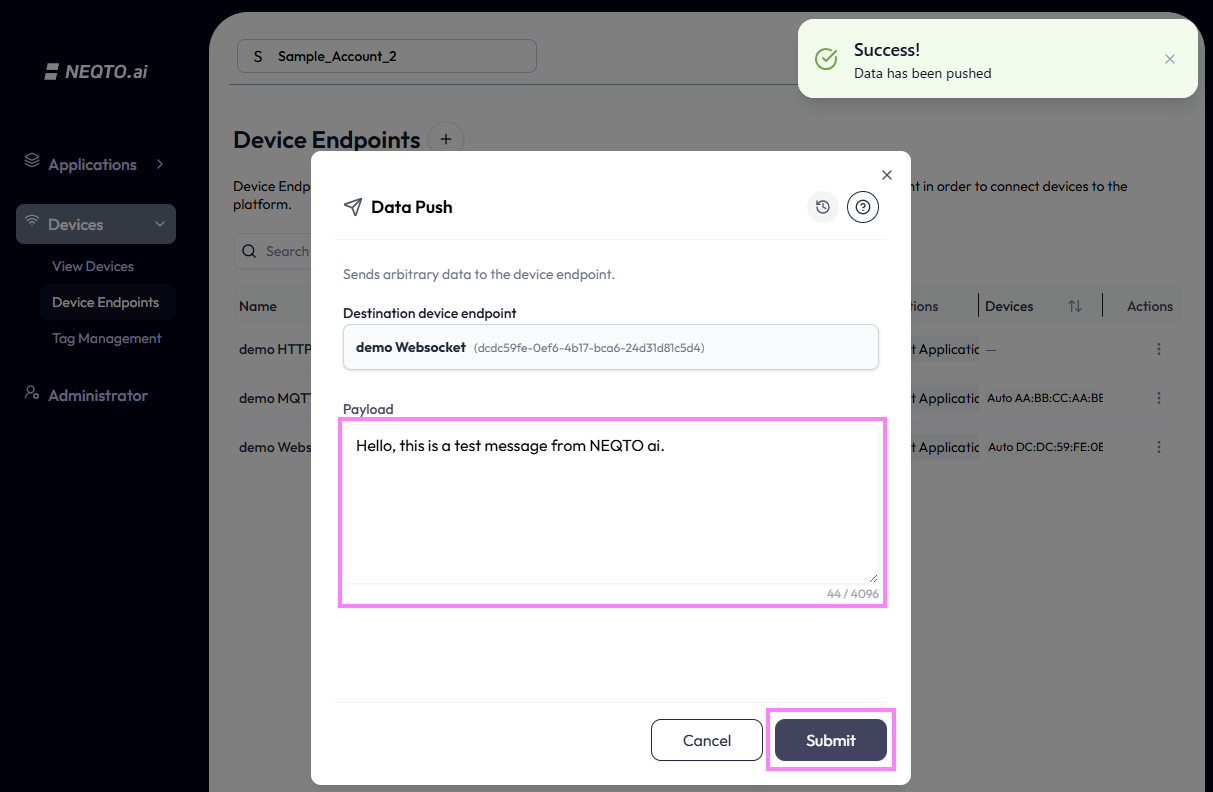
Type your payload into the Payload field and click Submit. On success, a confirmation appears and the data is delivered to the endpoint.
Formats and considerations
You can send a raw JSON string or binary data, in addition to plain text.
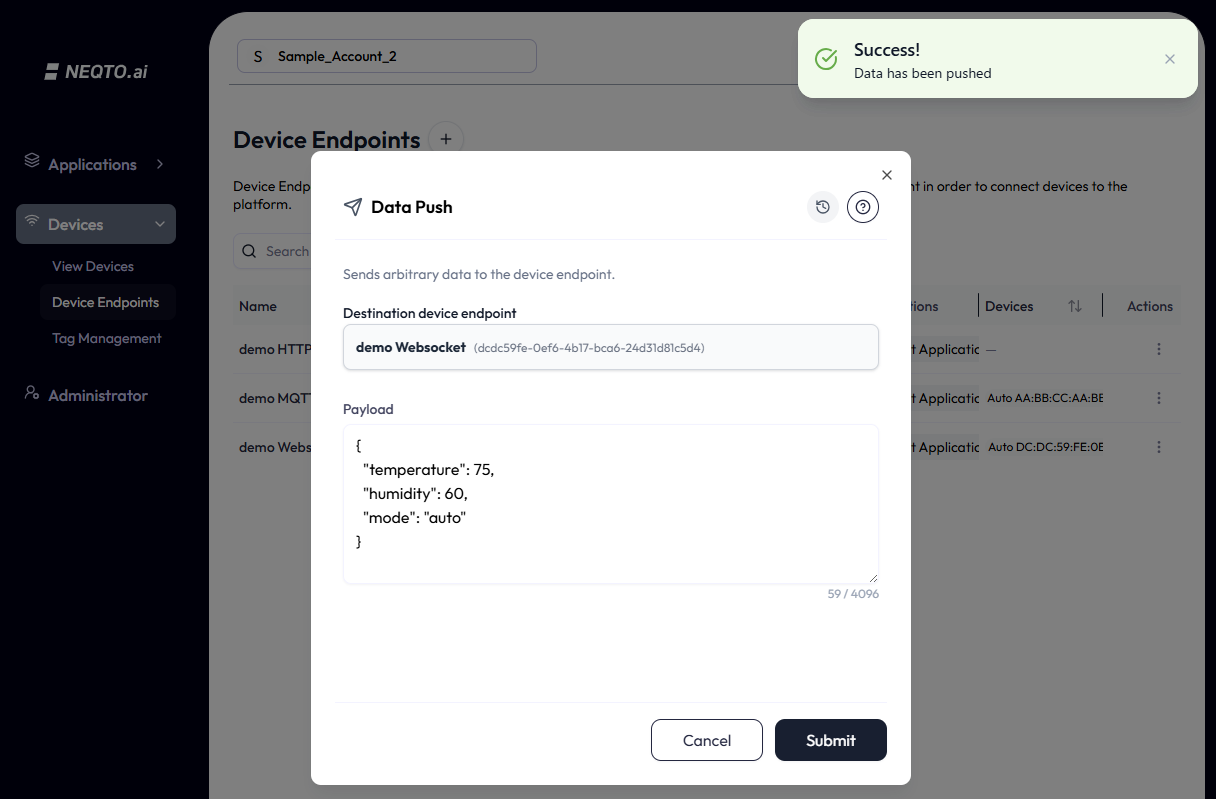
- Line breaks and spaces added for readability are removed (minified) before transmission.
- If the input has any leading or trailing whitespace, it is not recognized as JSON and is sent as plain Text instead.
Viewing and reusing transmission history
The Data Push screen keeps a history of past transmissions that you can review and resend.
-
1Click the History button (the clock icon at the top right of the modal).
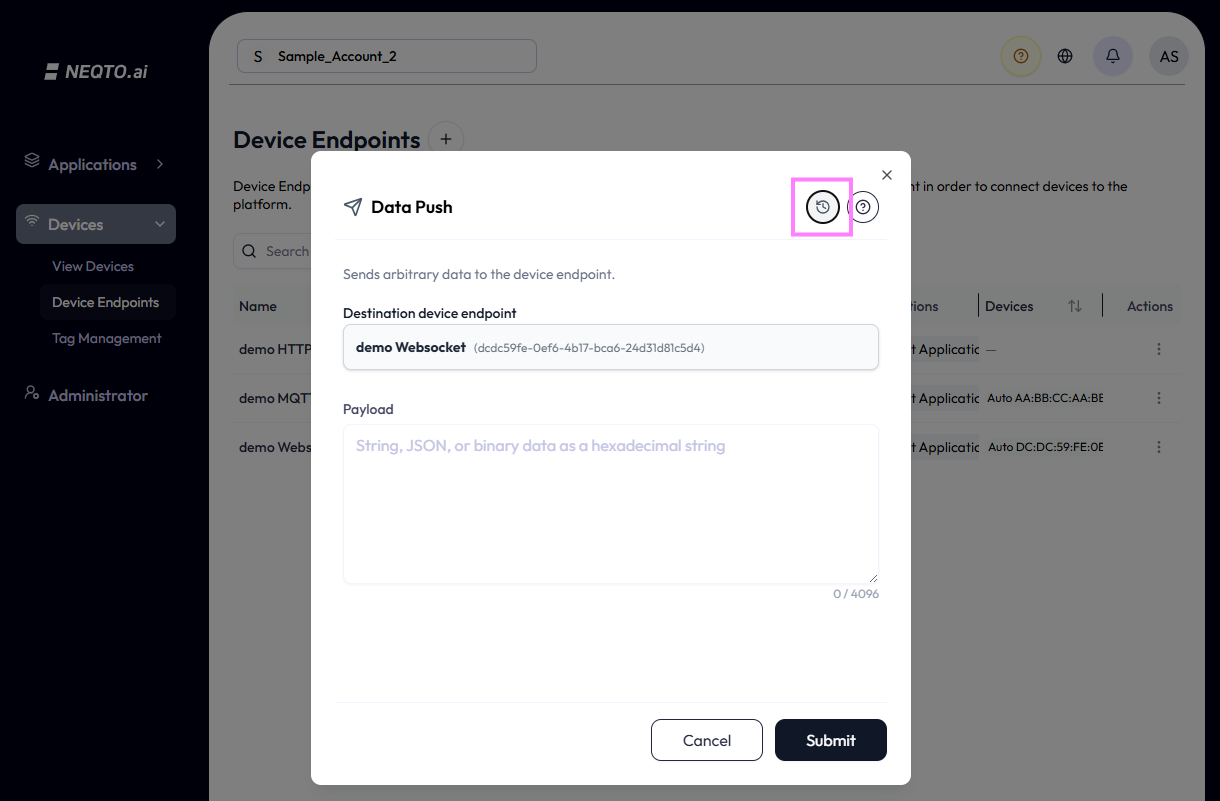
Open the send history from the clock icon. -
2The history list appears, in descending order (newest first). Each row shows the payload (with a TEXT, JSON, or BIN type badge), the Sent time, and the Status (Succeeded or Failed).
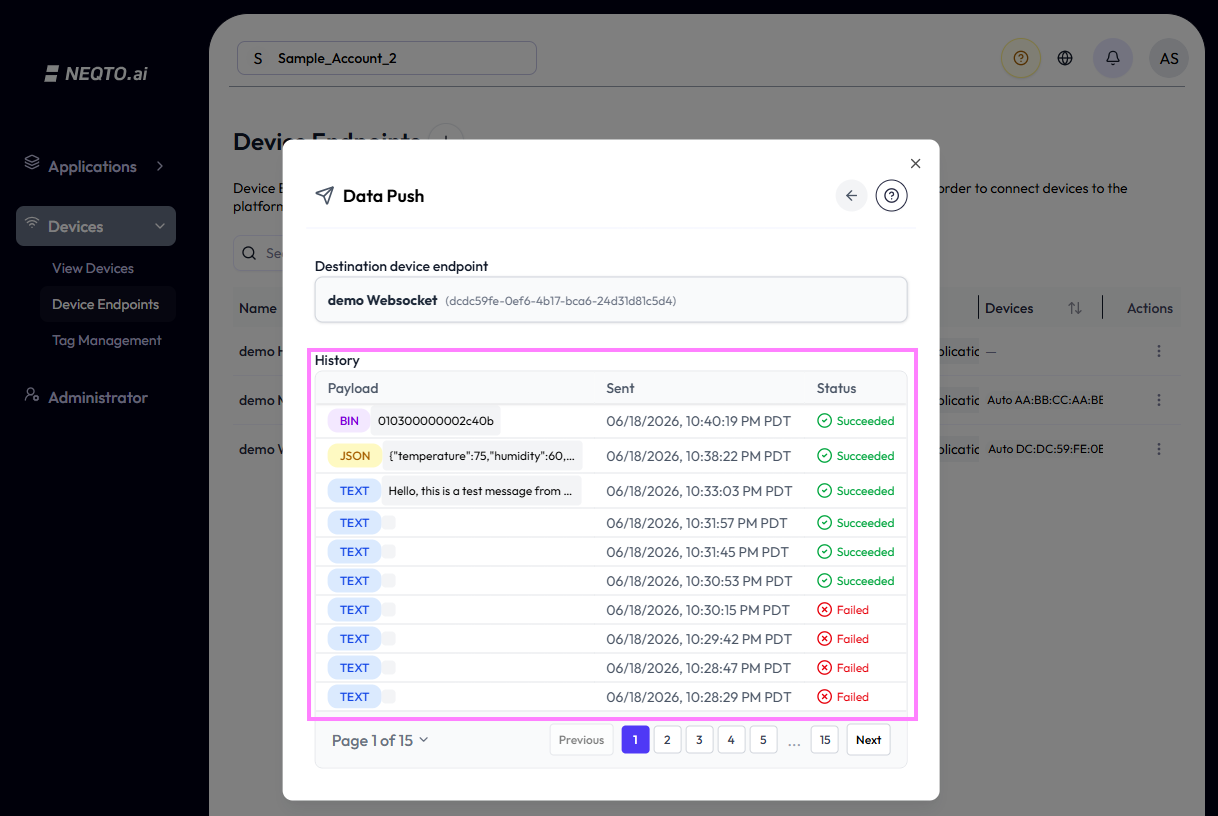
Transmission history, newest first, with type badges and send status.
From the history view you can:
-
Return to the input screen — click the back (←) button at
the top of the screen.
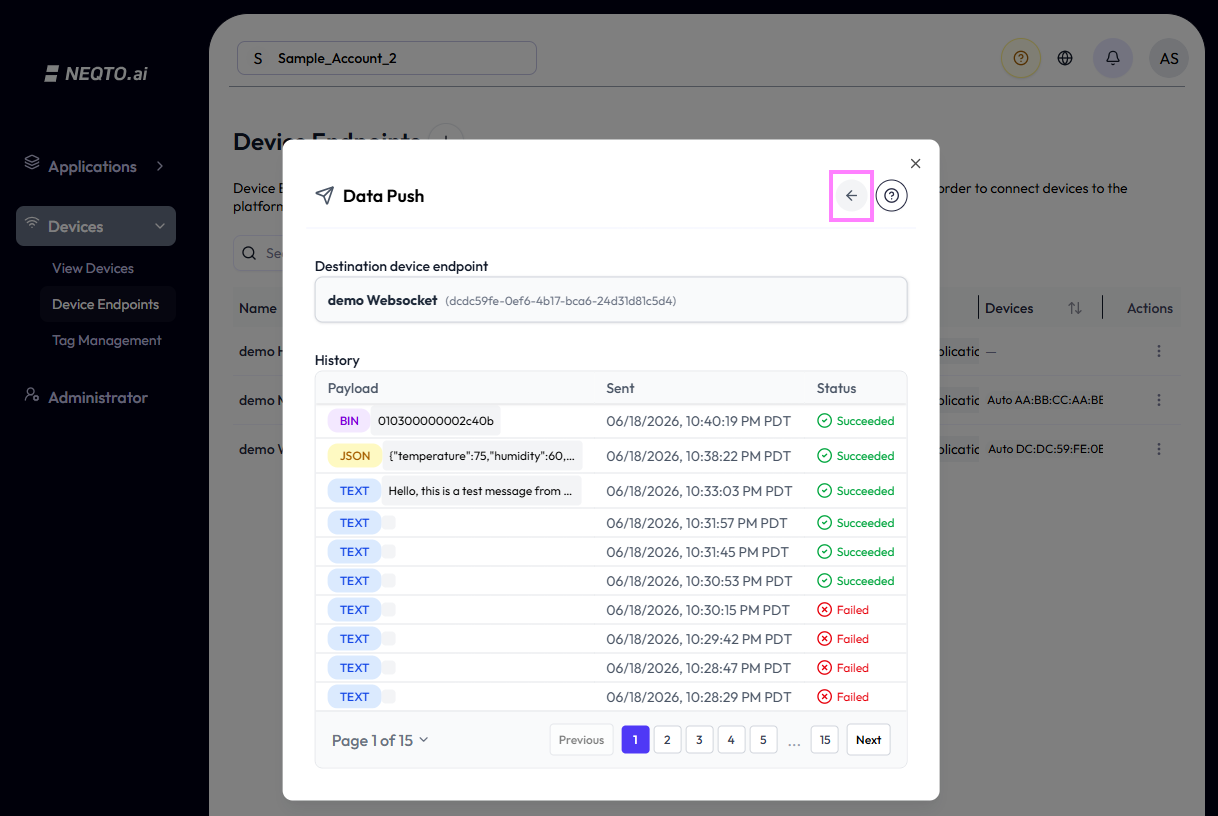
The back button returns you to the payload input. -
Navigate pages — pick a page number from the pagination at the bottom of the
list.
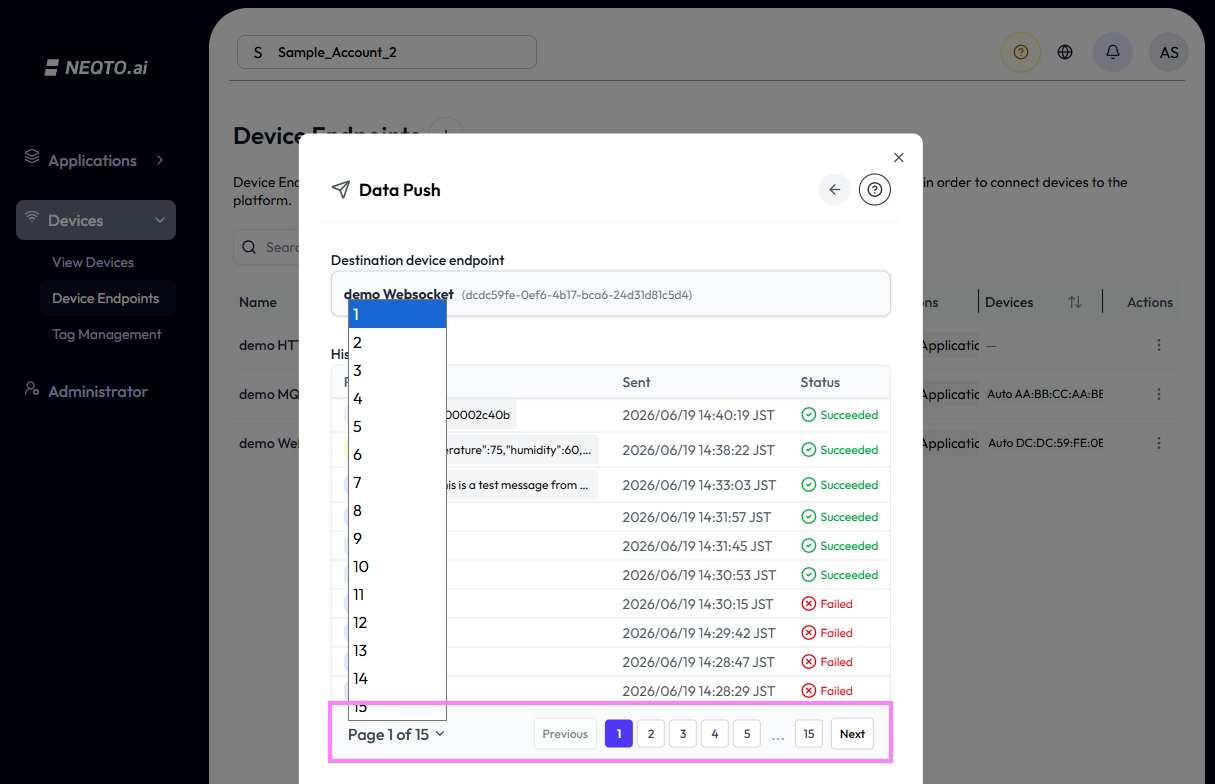
Jump to a page via the pagination controls. -
Reuse a past payload — click a row in the history list to paste that payload
back into the input field for quick resending.
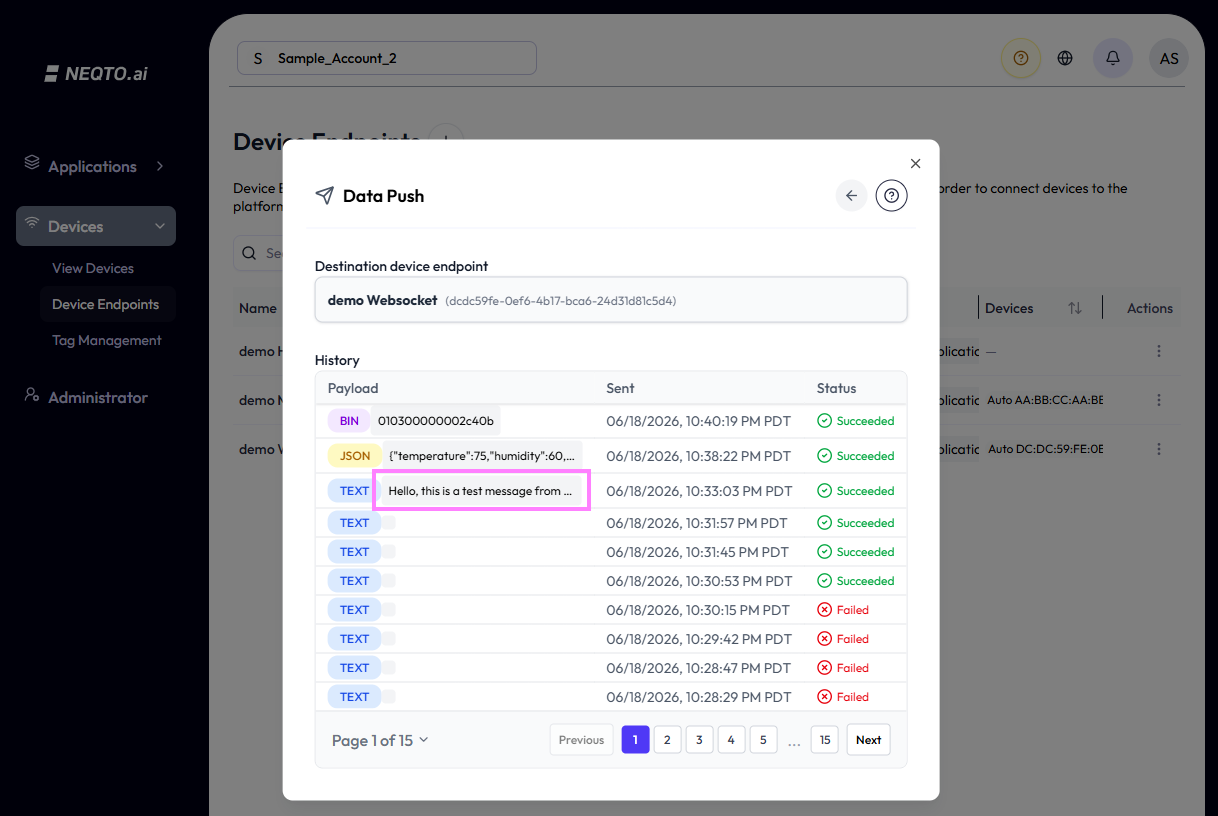
Click a history row to reuse its payload… 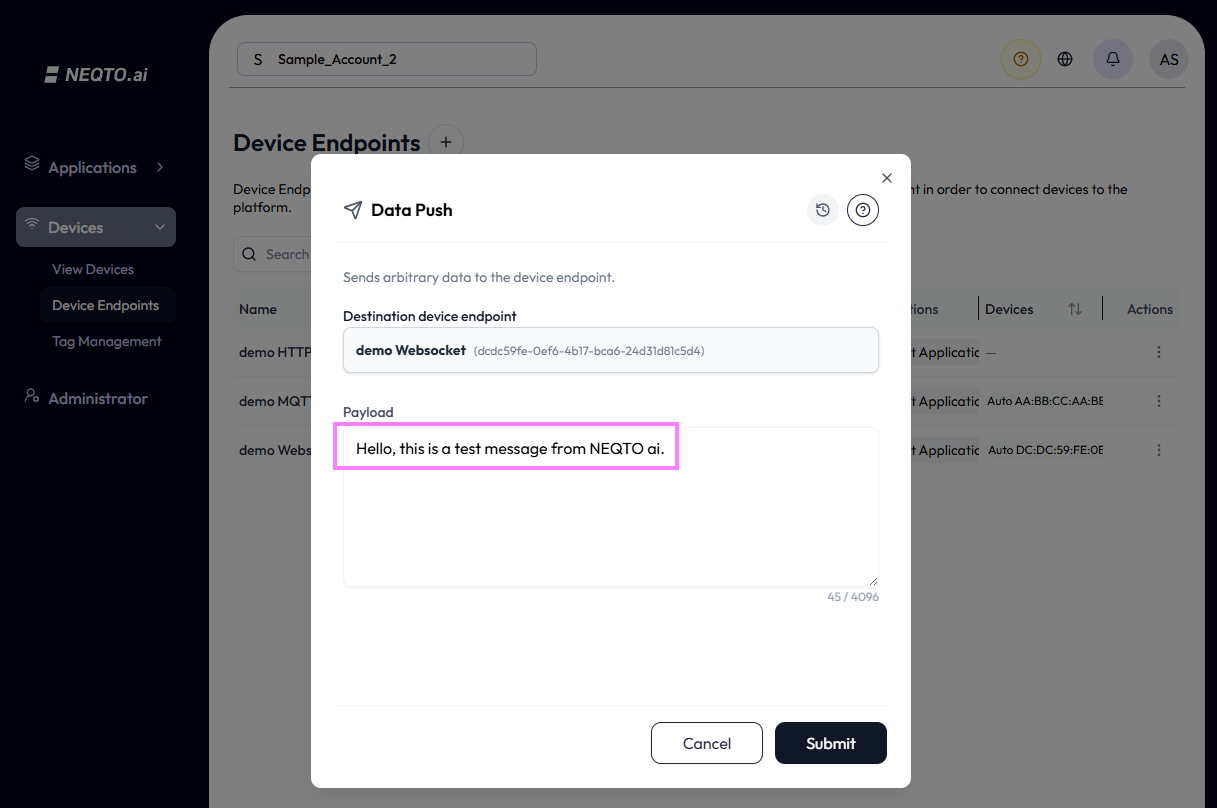
…and it is pasted back into the Payload field, ready to resend.
Sending via a Widget
A Data Push widget lets you send pre-configured payloads straight from a dashboard — handy for commands you send frequently.
Create the widget
-
1On a dashboard, click the Create Widget (
+) button in the toolbar to open the widget creation screen.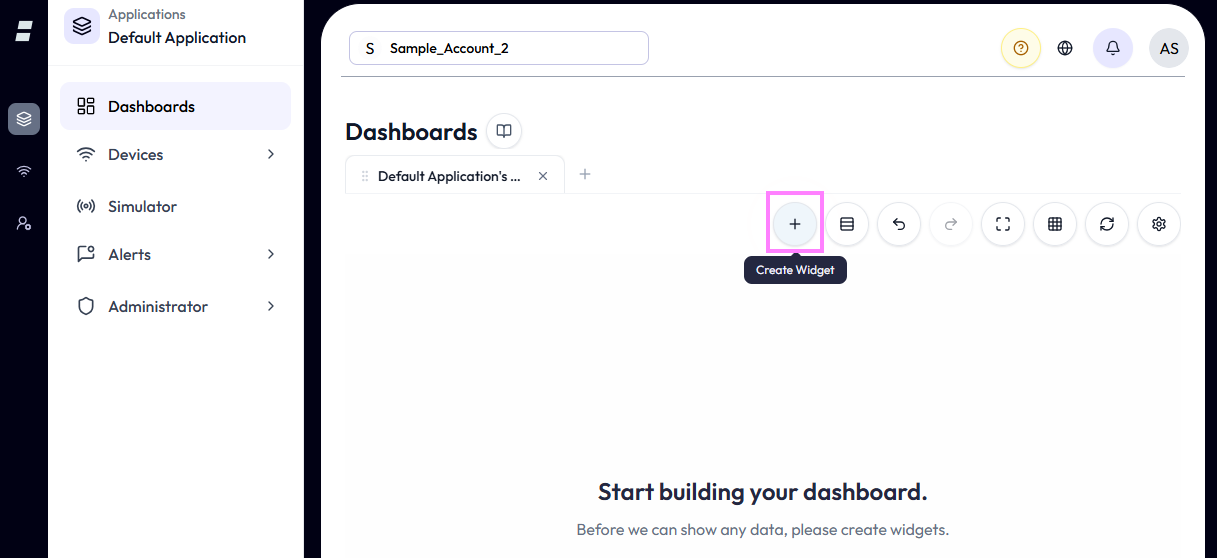
Open the widget creation screen from the dashboard toolbar. 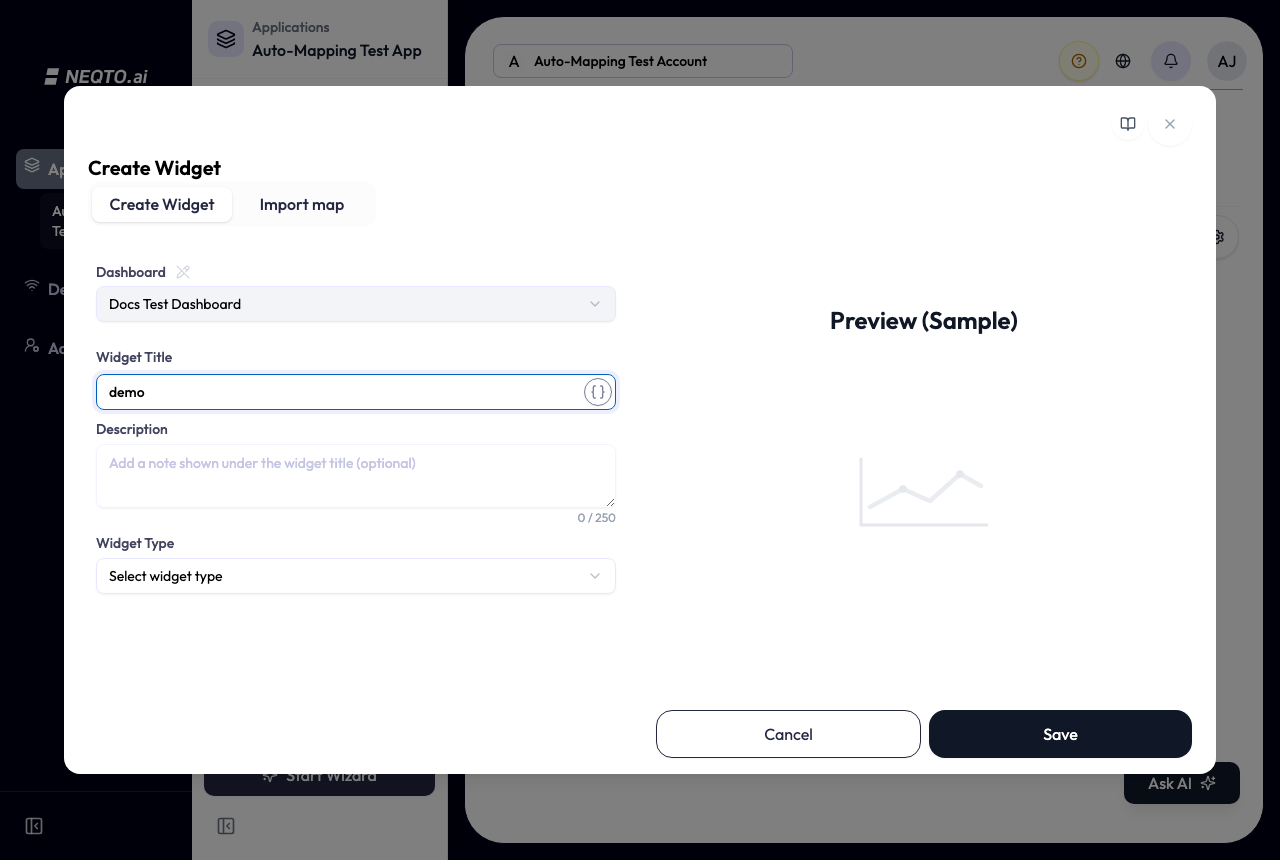
The Create Widget dialog. -
2Under Widget Type, select Data Push.
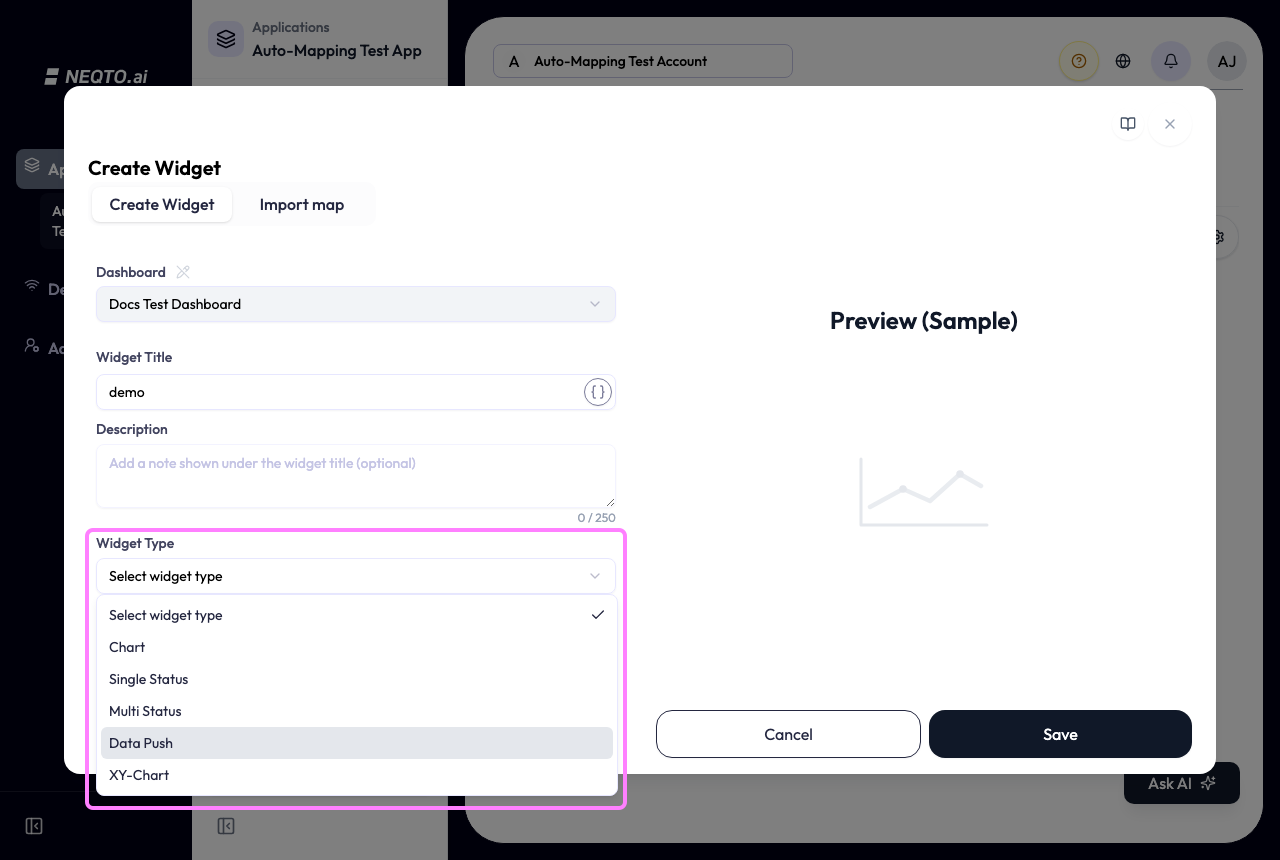
Choose Data Push as the widget type. -
3Under Style, select Form or Button.
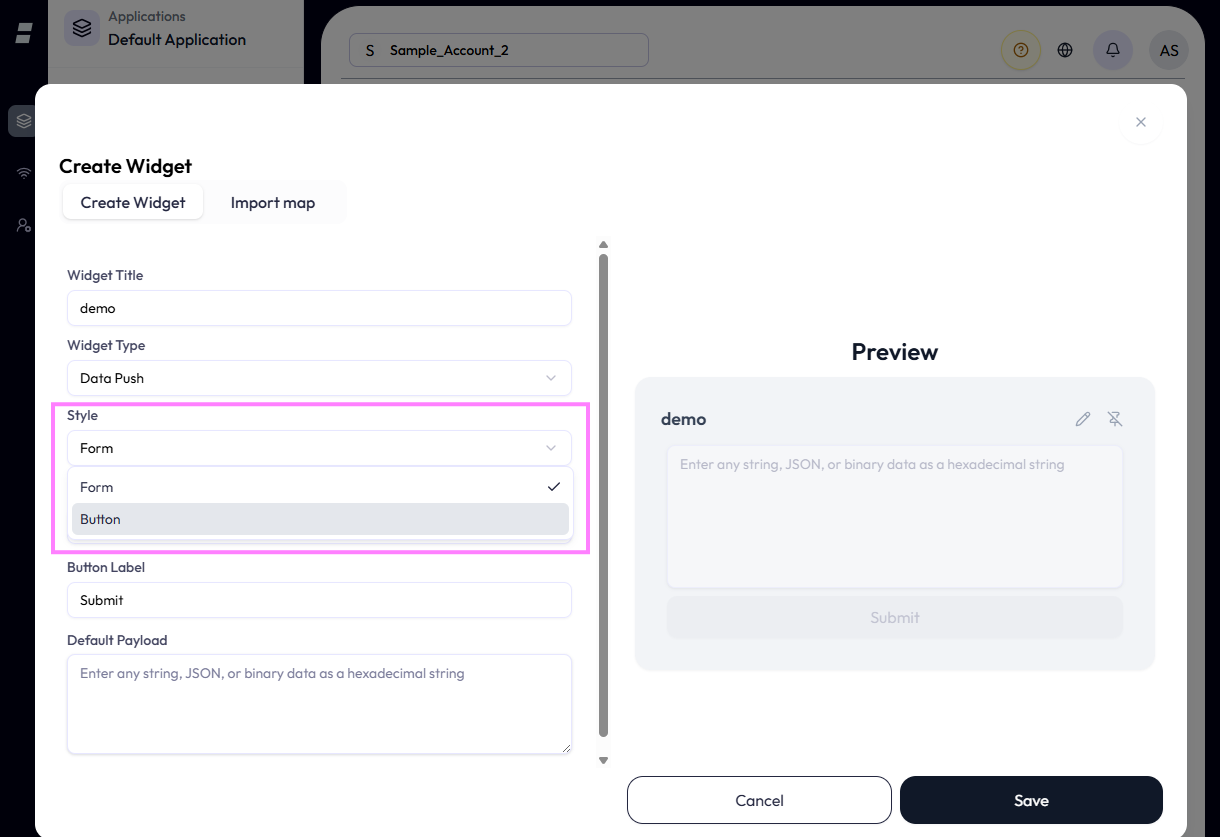
Pick the widget Style: Form or Button. -
4Select the destination Device Endpoint. Only MQTT and WebSocket endpoints are eligible — an HTTP endpoint is shown as unsupported.
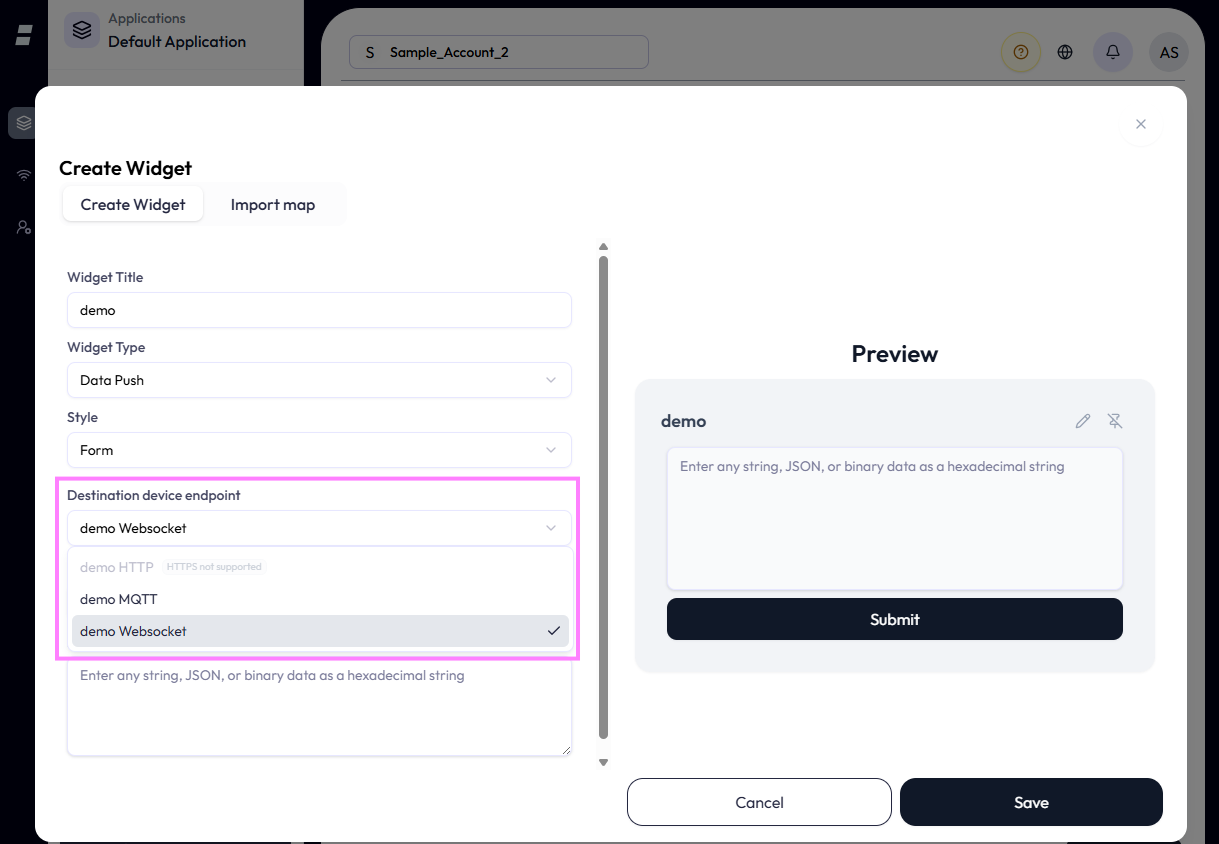
Choose the destination endpoint (MQTT or WebSocket only). -
5Configure the payload for your chosen Style. For Form, optionally set a Default Payload that pre-fills the input field. For Button, add and configure the commands (payloads) to send.
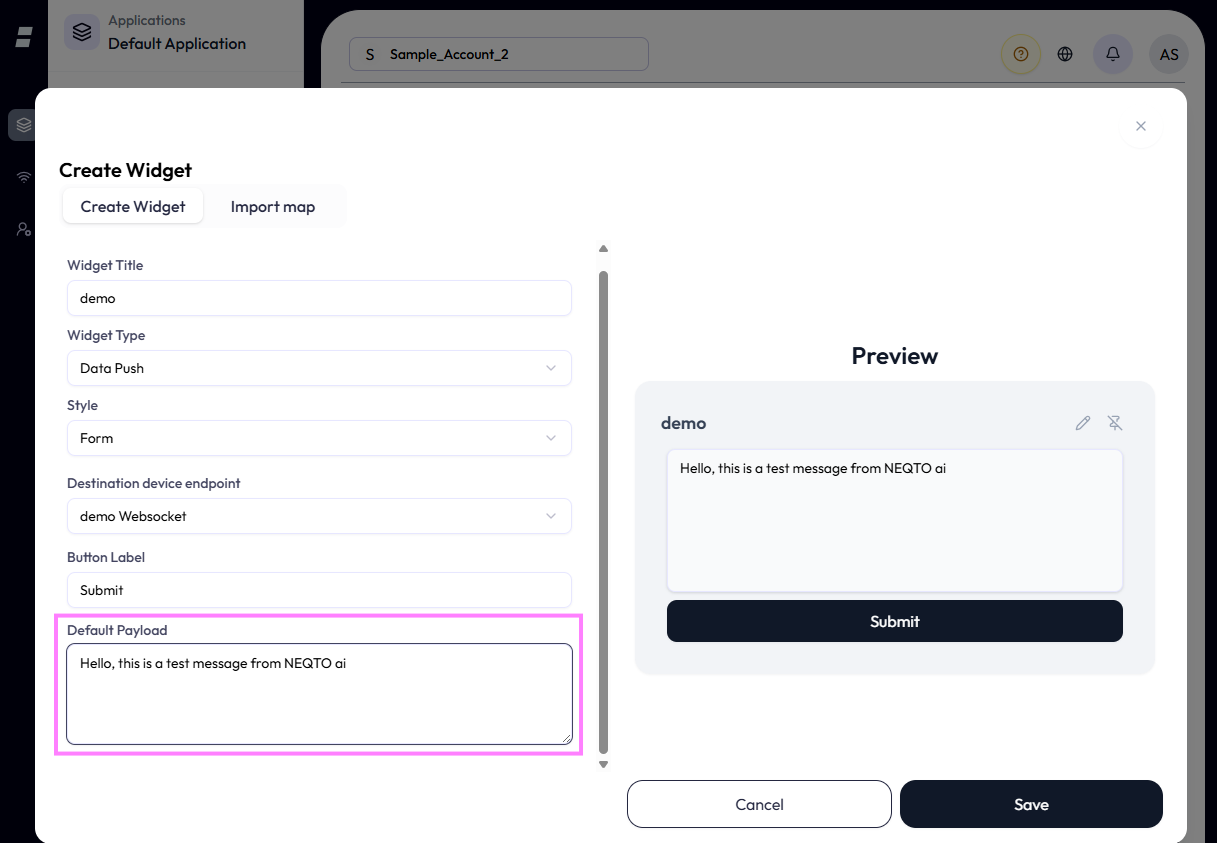
Form Style: set an optional default payload. 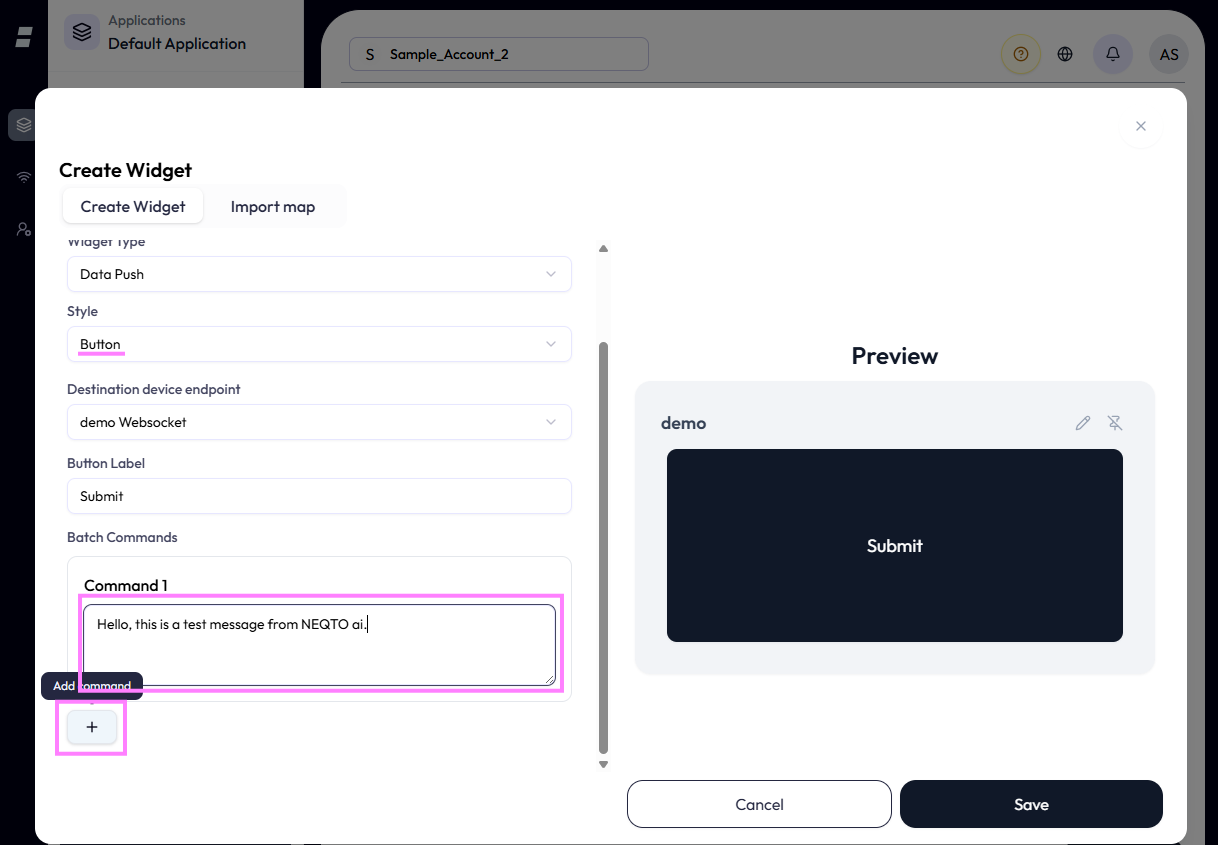
Button Style: add the commands to send (up to four). -
6Click Save. The widget is created and added to your dashboard.
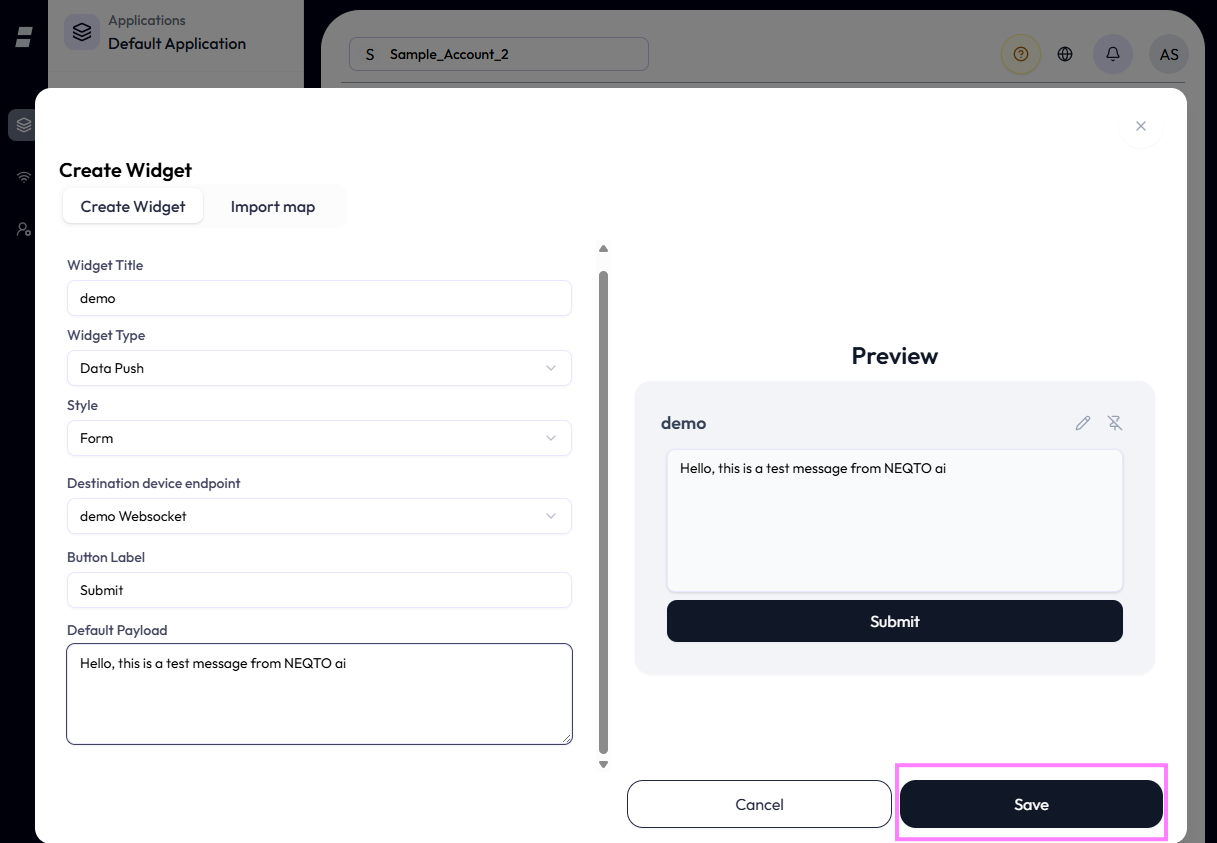
Save the widget. 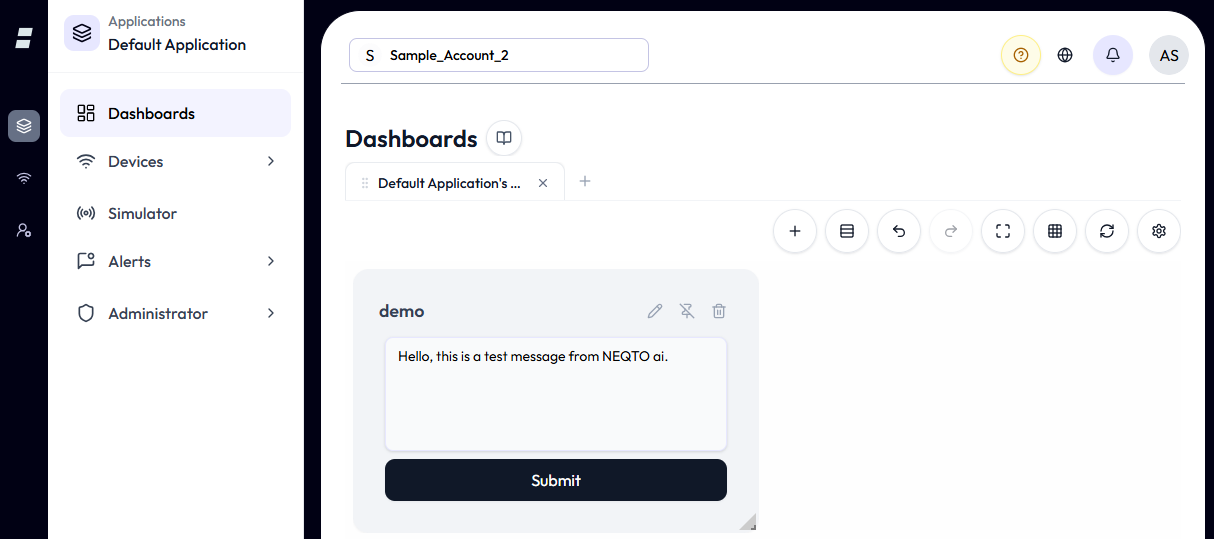
The widget is added to the dashboard.
- Form — an input-form widget for entering and sending arbitrary data on the fly, with an optional default payload.
- Button — a one-tap widget that sends pre-configured data, with up to four commands.
Send from the widget
Click the Send (Submit / command) button inside the widget on your dashboard to immediately transmit the payload to the device.