The Map page lets you pin your devices onto a picture of the real space they live in: a floor plan, a site layout, a rack diagram, a piece of equipment. Each pin shows a live reading and turns color when an alert fires, so you can see at a glance where something is wrong and exactly where it is.
Quick Start
If you already know NEQTO.ai, here is the short version.
-
1Open an application and go to Map. In the left sidebar click Add map, give it a title, and upload a floor-plan image (PNG, JPEG, or WebP).
-
2Click Add device, then click a spot on the image to choose where the pin goes.
-
3In the dialog, pick a device, the attribute to show, and a category icon. Optionally add a text label and one or more click-charts. Save.
-
4The pin appears with its live value. Click any pin to open its details in the right-hand panel. Use Edit position to fine-tune placement later.
The Map Page Layout
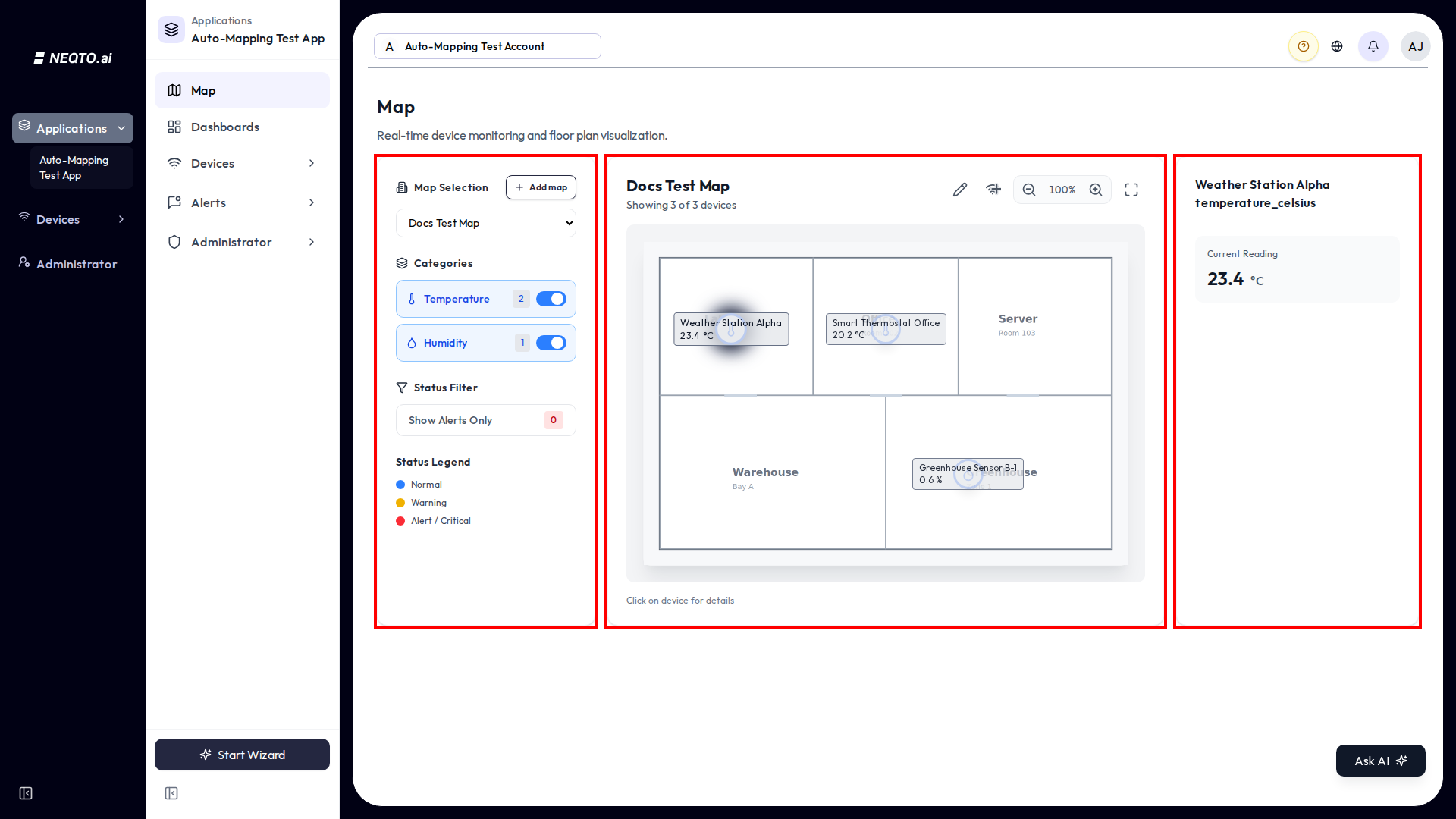
The Map page lives inside an application (its title is simply “Map”, described as “Real-time device monitoring and floor plan visualization.”). On desktop it is a three-panel view.
| Panel | What’s there |
|---|---|
| Filter sidebar (left) | The Map Selection dropdown to switch maps, the Add map button, category filters, a status filter, and the status legend. |
| Map (center) | The floor-plan image with pins on top. Zoom in, zoom out, and full screen. Click a pin to select it. |
| Device (right) | The selected pin’s current reading and any click-charts. Empty until you select a pin. |
On a phone the same three panels become tabs: Filters, Map, and Device. Tapping a pin opens a sheet with “Show device info” plus edit and delete actions.
Creating and Organizing Maps
An application can hold several maps, for example one per floor or one per area. You switch between them with the Map Selection dropdown.
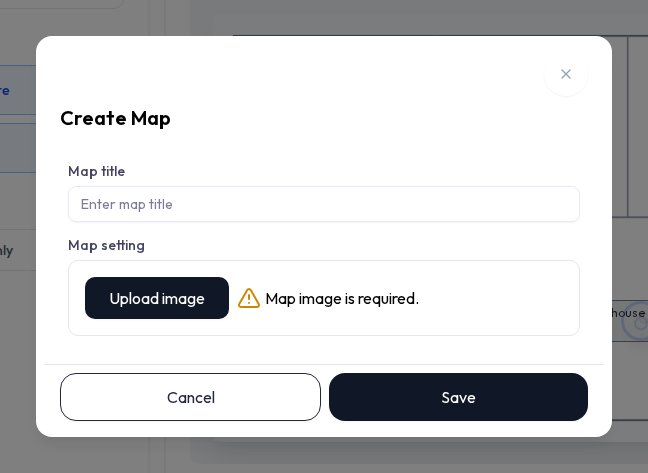
Create a map
-
1Click Add map in the sidebar to open the Create Map dialog.
-
2Enter a Map title (up to 255 characters).
-
3Upload image for the background. Accepted types are
PNG,JPEG, andWebP. Save.
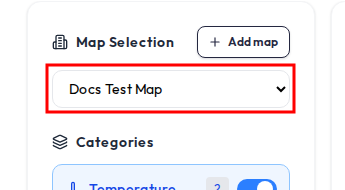
Switching, editing, and deleting
- Switch maps with the Map Selection dropdown. The page remembers your choice in the URL (a
mapIdquery parameter), so a map link is shareable. - Edit a map with the pencil (Edit floor map) button on the map toolbar to change its title or swap the floor image.
- Delete a map from inside that edit dialog (the trash button), after a confirmation. Its stored floor image is removed too.
Placing Devices on the Map
Each pin links one attribute of one device to a spot on the image. You place pins by clicking the map, then filling in a short form.
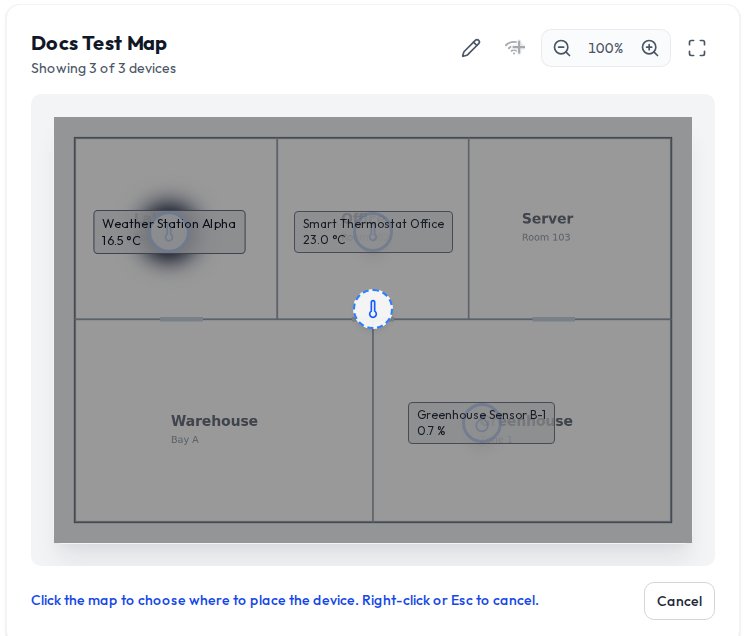
-
1Click Add device. The cursor shows a ghost pin. Click the spot on the image where the device sits. (Right-click or press Esc to cancel.)
-
2In the dialog, choose the Device (a searchable list), then the Attribute to display. Devices already pinned on this map are hidden from the list to avoid duplicates.
-
3Pick a Category, which sets the pin’s icon shape, add an optional label, configure any click-charts, and Save.
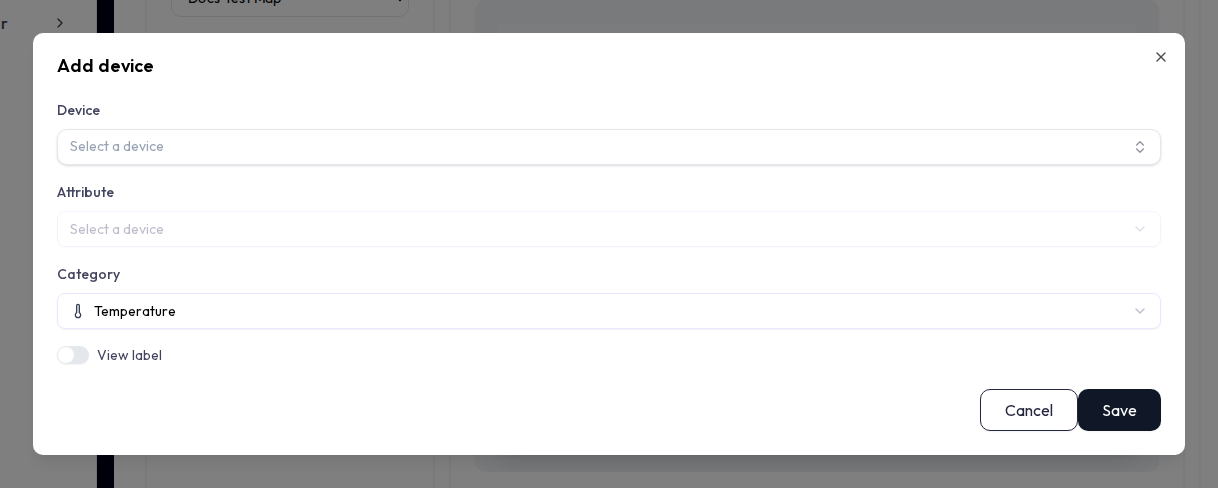
Category icons
The Category you pick decides the pin’s icon. It is a visual choice and does not change the data. The available categories are:
| Category | Icon |
|---|---|
| Air Flow | Wind |
| Temperature | Thermometer |
| Humidity | Droplet |
| CO2 | Tree |
| Acceleration | 3D move |
| Door | Open door |
| Brightness | Sun |
| Motion | Custom motion artwork |
| Occupancy | Person |
| Other | Circle |
The default category for a new pin is Temperature.
Pin labels
Turn on View label to show text next to the pin. You can type a fixed label, switch on Place value to show the live reading, or both. A label position control places the text center, top, bottom, left, or right of the pin, with a live preview as you edit.
Click-charts (numeric attributes only)
For numeric attributes you can attach one or more history charts under “Charts when clicking this device.” Each chart you enable appears in the right-hand device panel when the pin is selected. You choose the chart type, color, time window (live relative window or a daily rotation), and Y-axis bounds, with a live preview in the dialog.
Reading the Map
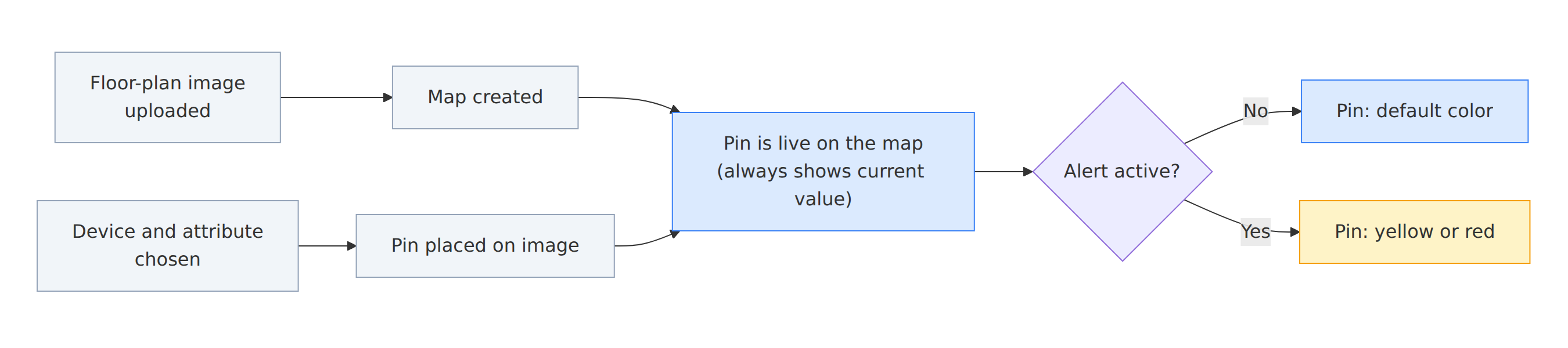
Once pins are placed, the map updates itself. Values stream in live and pins recolor when alerts fire.
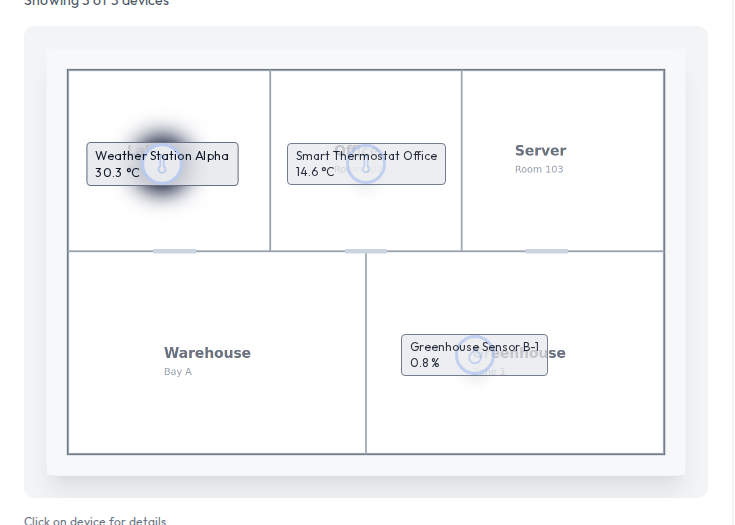
Status colors
A pin’s color reflects the most severe active alert on its device or attribute. The sidebar’s Status Legend spells it out:
| State | Pin color |
|---|---|
| Normal (no active alert) | Default / info blue |
| Warning | Yellow |
| Alert / Critical | Red |
Completed (resolved) alerts are ignored, so a pin returns to normal once its alert clears.
The device panel
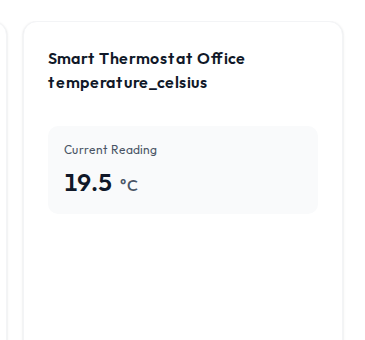
Click a pin to select it; the device panel shows its current reading (value, unit, and the time it arrived in your timezone) plus any click-charts. With no pin selected, the panel prompts you to click a device on the map. On a map with pins, the first pin is selected by default.
Filtering what you see
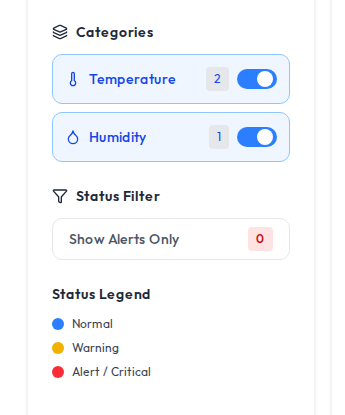
- Categories lists each category present on the map; uncheck one to hide those pins.
- Show Alerts Only hides every pin except those with an active alert, useful for triage on a busy map.
Zoom and full screen
The map has Zoom in, Zoom out, and Full screen controls. Because pin positions are stored as percentages of the image, they stay put as you zoom or change screen size.
Editing Pins
After placing a pin you can move it, change its settings, or remove it. These actions need edit permission for the application.
| Action | What it does |
|---|---|
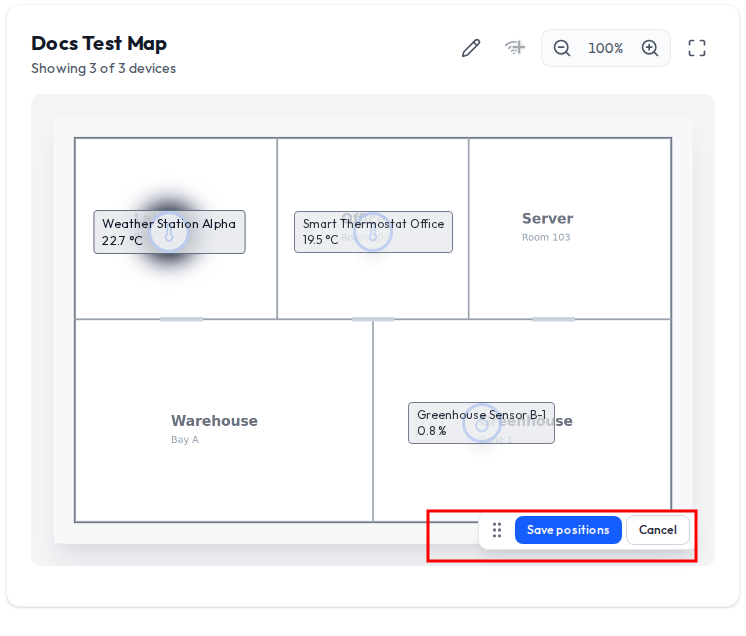
| Edit position | Drag the pin to a new spot, then Save. Only that pin’s coordinates change. Press Esc or Cancel to discard. |
| Edit | Reopen the device dialog to change the attribute, category, label, or click-charts for that pin. |
| Delete | Remove the pin after a confirmation (“Remove device from map?”). The device itself is untouched; you can add it back later. |
On desktop these appear in a small menu on the selected pin; on mobile they appear in the pin’s bottom sheet.
Maps on Dashboards
A map you build here can also appear as a widget on a dashboard. The two stay related: the dashboard widget mirrors the map you created on the Map page.
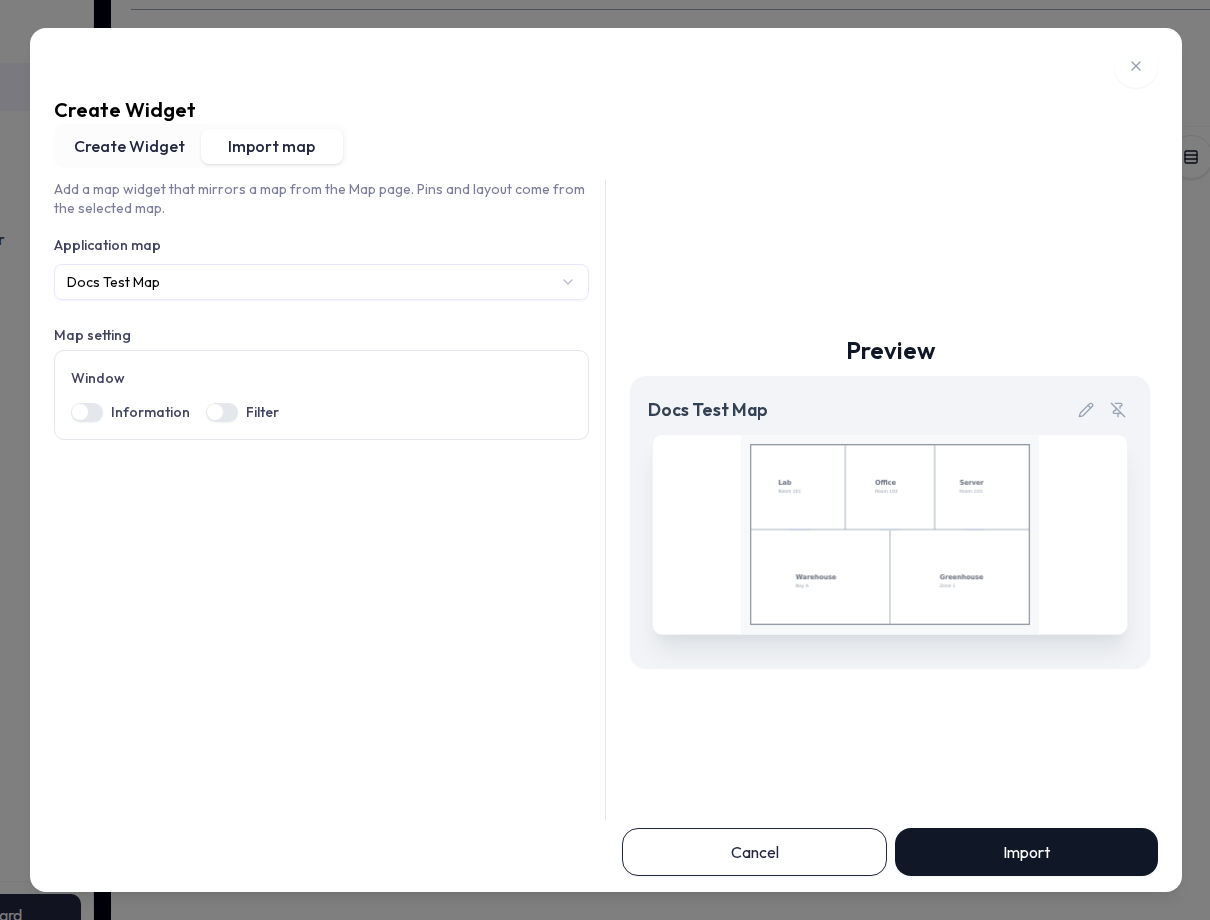
- Under Map setting the widget has a Window section with Information and Filter toggles to show or hide the map’s built-in info and filter windows on the dashboard.
- A widget created as a map widget cannot be changed into another widget type afterward.
- The Map page itself only appears in an application’s navigation when its route is enabled in the application sidebar.
Limits and Good to Know
A few details that are not obvious from the screens.
| Limit | Value |
|---|---|
| Maps per application | 15 |
| Floor image types | PNG, JPEG, WebP |
| Map title length | 255 characters |
| Categories (pin icons) | 10 (Air Flow, Temperature, Humidity, CO2, Acceleration, Door, Brightness, Motion, Occupancy, Other) |
| Pins per device, per map | 1 (a pinned device is hidden from the picker) |
- Maps are image overlays, not geographic maps. There is no latitude/longitude. You position pins by hand on a picture you provide.
- Pin positions are percentages. They survive zoom and resizing without drifting.
- Pin color follows alerts. Yellow for warning, red for alert/critical; resolved alerts clear back to normal.
- Editing needs permission. Adding, moving, editing, and deleting pins all require application edit rights. Without them the map is view-only.
- Click-charts are for numbers. The history-chart options only show for numeric attributes, not for text or state values.