
Widget Calculations let a widget display a computed value instead of a raw reading. There are two ways to build one, and this page covers both:
- A Quick Combination pairs two attributes with a single operation: add, subtract, multiply, or divide. Good for differences, sums, and ratios, like the gap between two temperatures.
- An Advanced Calculation opens a full formula editor. You write real math over up to 20 variables, with functions, constants, and ready-made templates. Good for unit conversions, sensor calibration, and physics formulas like dew point or three-phase power.
- Chart — the calculated value is plotted as a trend over time.
- Single Status — one calculated value from the latest readings of the inputs.
- Multi Status — the same latest-value calculation, set per Device Attribute section, so calculated and plain rows can be mixed in one table or list.
Quick Combinations
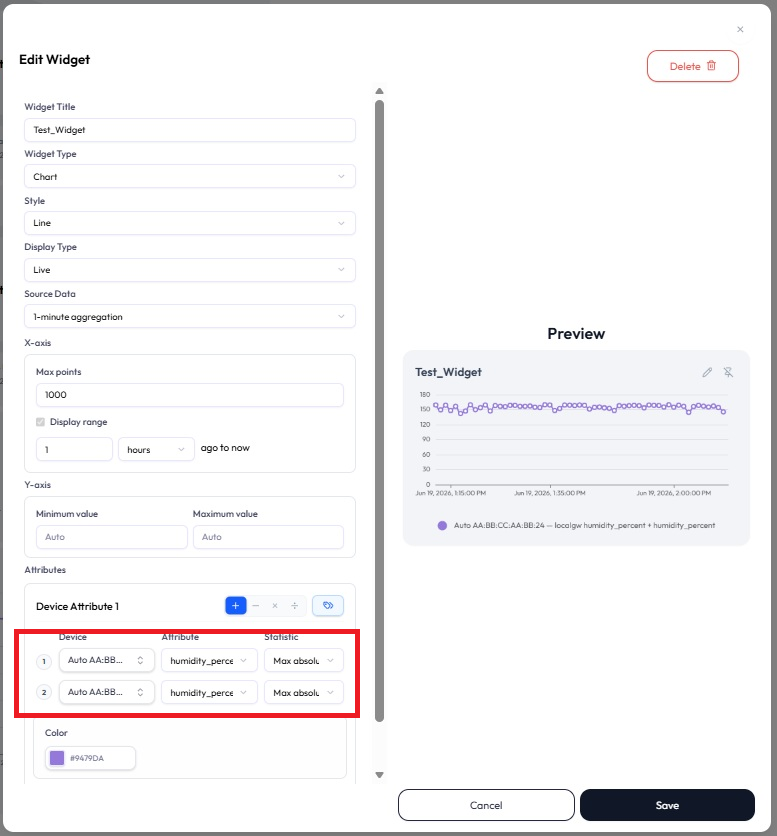
A Quick Combination lives on the attribute row itself. You switch the row into Multi Mode, pick one operation, and pick the two attributes. The widget then shows attribute ① <operation> attribute ②.
-
1Switch to Multi Mode. In the widget editor, open the Device Attribute section and click the Mode Switch button (the tag icon). Clicking it again returns to Single Mode.
-
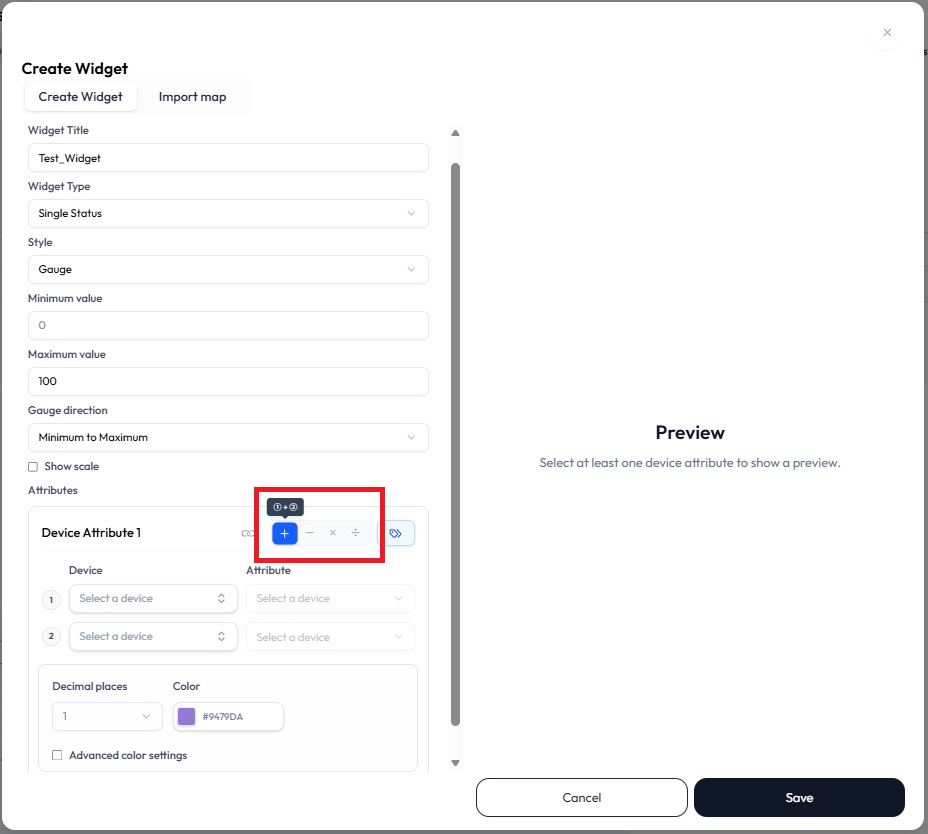
2Pick the operation. Operation buttons appear beside the Mode Switch: +, −, ×, or ÷. Hovering one shows the formula it applies, for example ① + ②.
-
3Pick the two attributes. Two numbered rows (① and ②) each take a Device and an Attribute. Once both are set, the Preview shows the calculated result.
-
4Finish as usual. Style options such as Color, Data label, and Rounding work exactly as they do for a plain attribute. Save the widget.
Strict Timestamp Mode (status widgets)
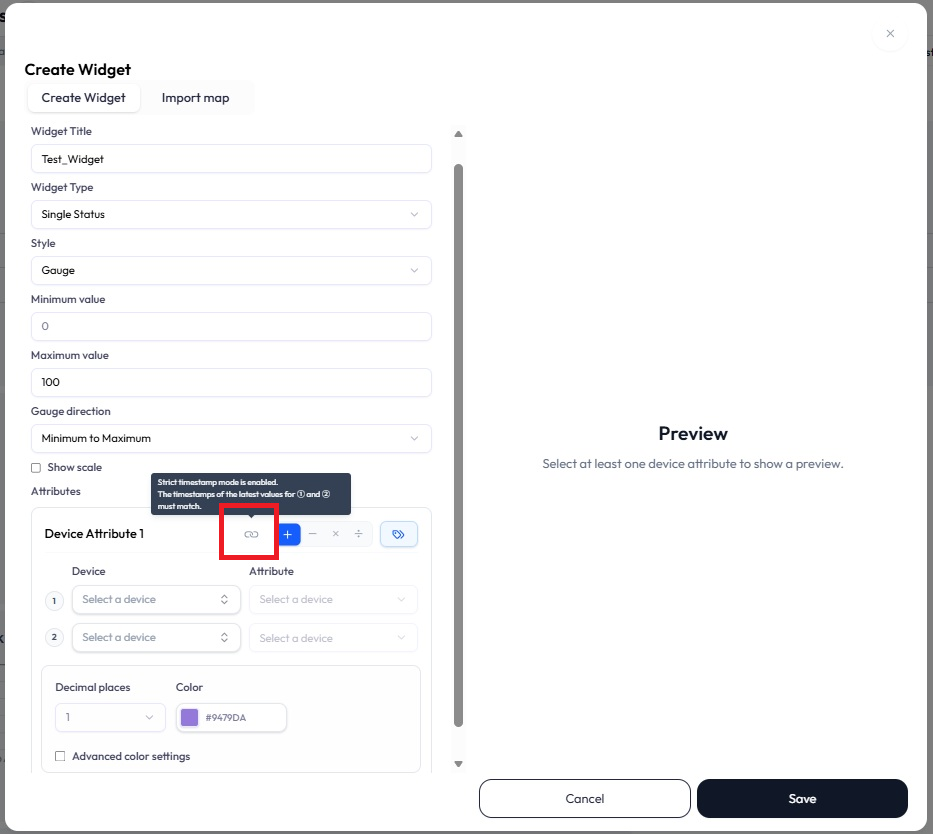
On Single Status and Multi Status widgets, a chain-link button next to the operation buttons toggles Strict Timestamp Mode. It is on by default. While it is on, the latest values of ① and ② must carry the same timestamp for a result to be computed. Turn it off and each attribute’s own latest value is used, regardless of timestamp.
Mixing calculated and plain rows (Multi Status)
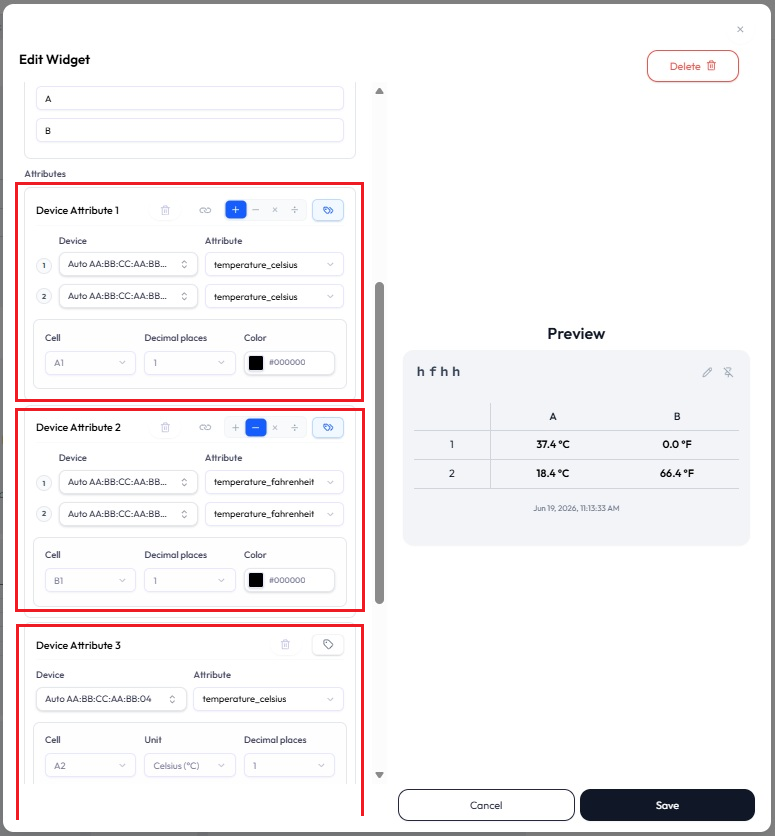
A Multi Status widget has several Device Attribute sections, and each one is independent. Put a combination in some sections and leave others as plain attributes; the table shows both kinds side by side.
Charts
On a Chart the flow is identical: Multi Mode, operation, attributes ① and ②. Each attribute also keeps its Statistic when the chart aggregates, so you control how each side is reduced before the operation is applied. The result is plotted over the shared timeline.
When the result can’t be calculated
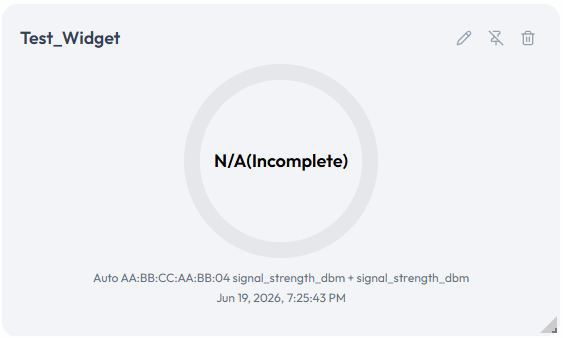
When a combination cannot be computed, the widget says so instead of showing a made-up number. On a status widget the value area reads N/A with the reason; on a chart the affected point shows N/A in the tooltip rather than being plotted.
- N/A(Incomplete) — the timestamps of ① and ② do not match under Strict Timestamp Mode, or one side has no data.
- N/A(Division by Zero) — division is selected and the divisor is zero.
- N/A(Not as a Number) — an input exists but is not numeric, so the operation cannot run.
Advanced Calculations
When one operation is not enough, the Advanced Calculation editor lets you write a full formula: several variables, functions, constants, powers, and roots, shown as real typeset math rather than code. The formula runs in your browser as data streams in, and the result renders on the widget like any other series.
Creating a calculation
-
1Open the editor. On a Device Attribute section, click the lightning-bolt (⚡) button. The Calculation editor opens over the widget editor, with one empty variable ready to bind.
-
2Build the formula. Use the toolbar buttons, pick a Template, or just type. Typing is live math, not plain text:
/makes a fraction,^a power, and function names likesinconvert as you type them. -
3Bind the variables. Each variable in the formula gets a card below it. Add more with + Attribute (a device’s numeric attribute) or Tag (a device, then one of that device’s numeric tags). Plain numbers are typed straight into the formula and need no variable.
-
4Check the preview, then Save. A live chart computes the formula on recent data as you edit. Save stays disabled until the formula is valid, every empty box is filled, and each variable it uses is bound. On a Chart, at least one variable must be a device attribute; on status widgets a formula built only from tag variables is allowed, and it evaluates against the tags’ current values.
The editor, top to bottom
| Part | What it does |
|---|---|
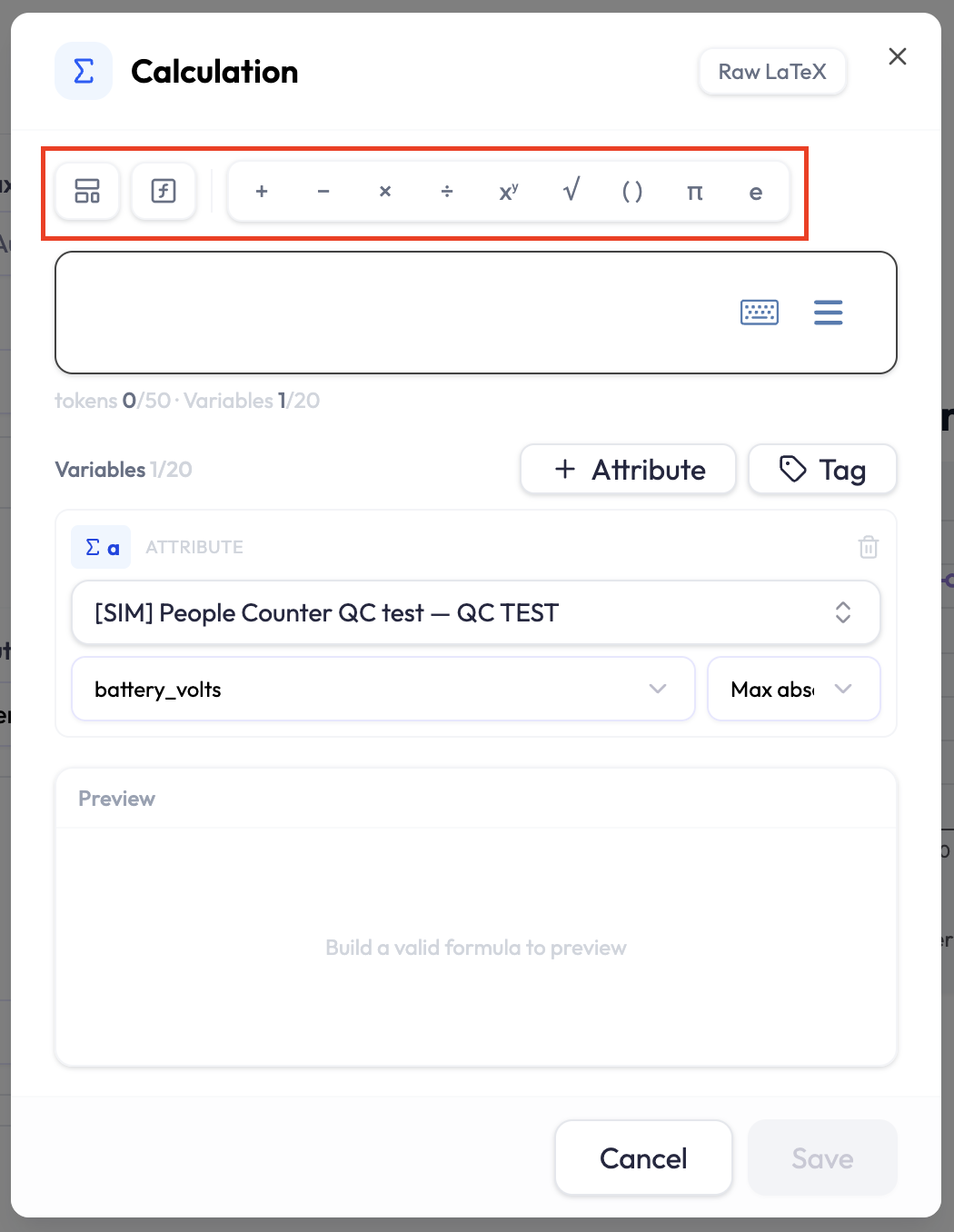
| Toolbar | Two menus, Templates and Functions, then one-click operators: + − × ÷, power, square root, parentheses, and the constants π and e. |
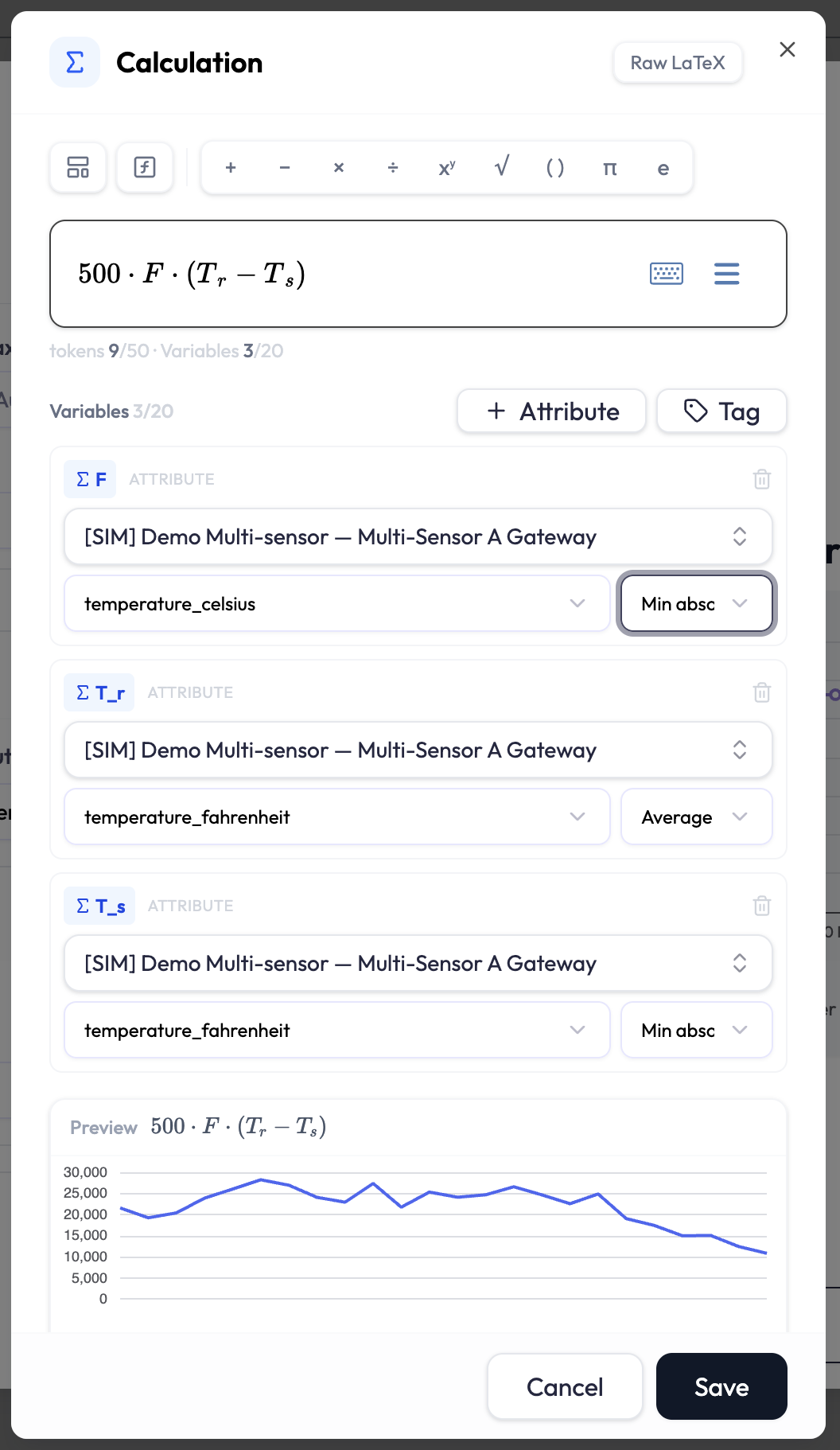
| Formula | The formula as typeset math, edited in place. A keyboard button opens an on-screen math keypad, and a menu offers undo, redo, and copy and paste. A Raw LaTeX button switches the whole field to plain LaTeX text (see below). |
| Counters |
tokens n/50 · Variables n/20 update live against the limits, so you can see
how close a formula is before anything blocks.
|
| Variables | One card per variable, auto-named with a short symbol (T, H, …). An attribute variable picks a device and one of its numeric attributes, plus a statistic (Average, Max, and so on) when the widget aggregates. A tag variable picks a device, then one of that device’s numeric tags, so a per-device constant like an area or a rate lives on the device instead of in the formula. The trash icon removes a variable. A variable that is not used in the formula is flagged and will not be saved. |
| Preview | A live chart of the formula, so the result can be sanity-checked before saving. On a Chart widget it computes over the chart’s own configured time range; on status widgets it uses the last 24 hours. A formula with no attribute variables previews as a single current value. |
Templates: ready-made formulas
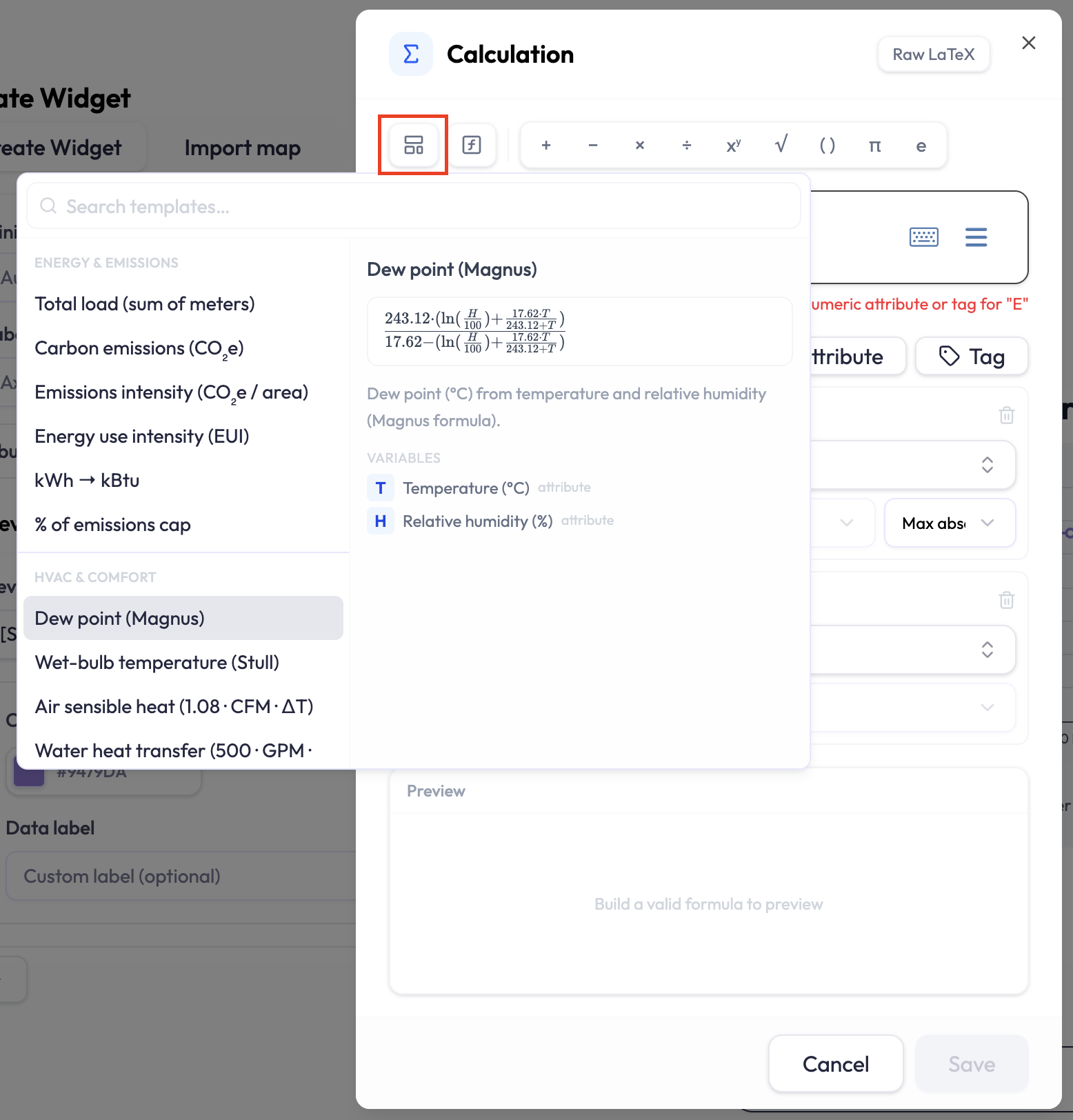
The Templates menu holds about thirty real-world formulas, searchable and grouped by category. Selecting one shows its typeset formula, a plain-language description, and the variables it needs. Picking it drops the formula into the editor with empty variable slots for you to bind.
| Category | Examples |
|---|---|
| Energy & emissions | Total load, carbon emissions (CO₂e), emissions intensity, energy use intensity (EUI), kWh → kBtu, % of emissions cap. |
| HVAC & comfort | Dew point, wet-bulb temperature, air and water heat transfer, chiller efficiency (kW/ton), wind chill, vapor-pressure deficit, flow from differential pressure. |
| Power | Three-phase power, apparent power, power factor, reactive power, load factor. |
| Sensors & signal | Linear scaling and 4–20 mA span mapping for analog signals, NTC thermistor temperature, RSSI → distance, decibel ratios, tank volume from liquid level (vertical or horizontal cylinders, gallons or liters). |
| Ratios | Efficiency (%), % of setpoint. |
Every template computes point by point on the aligned timeline. None of them need history or a rolling window.
Functions, and how they work
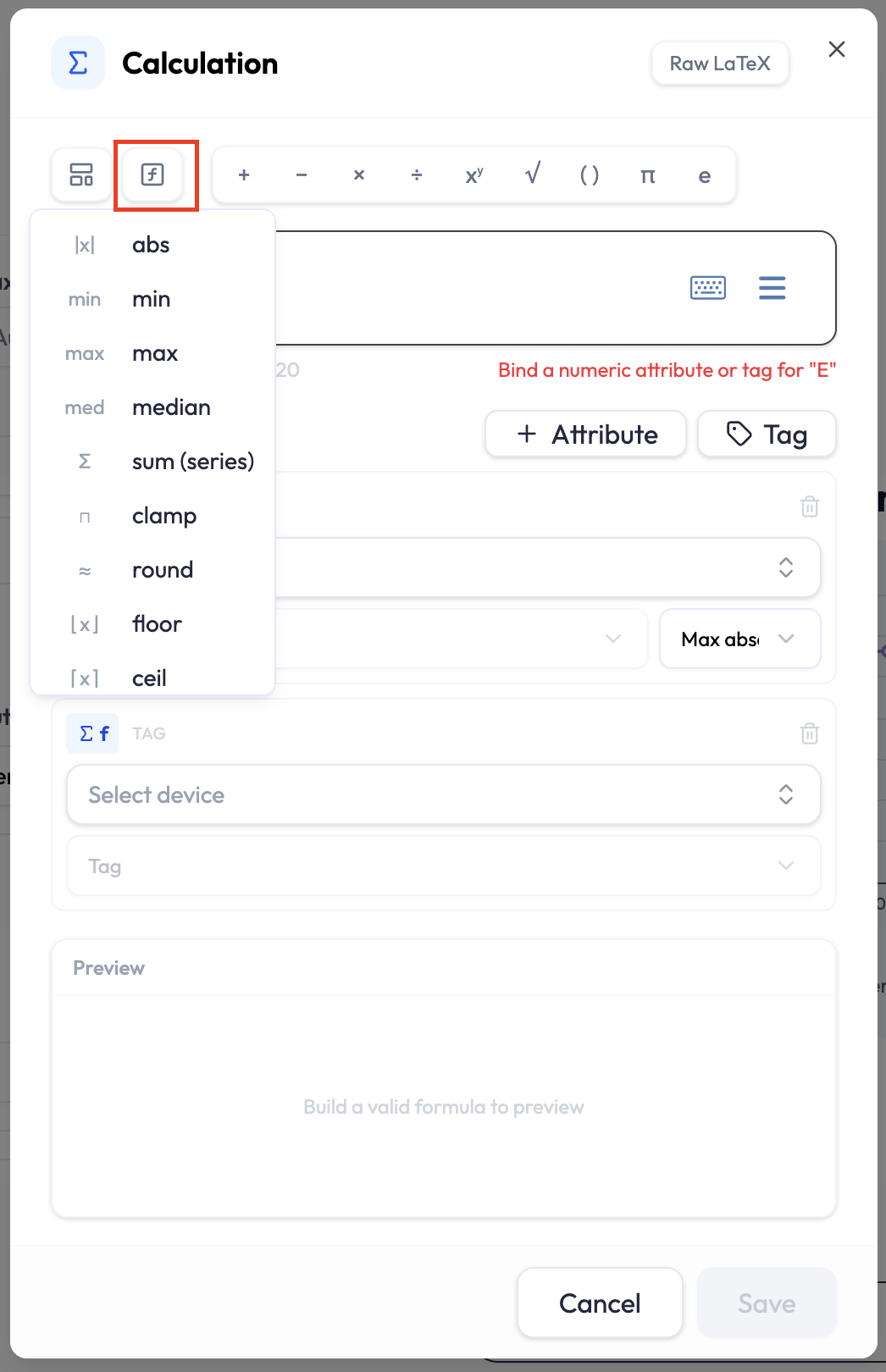
Every function takes numbers and returns a number. The Functions menu inserts the most common ones in one click; the rest are typed by name or written in LaTeX.
| Group | Functions |
|---|---|
| Rounding | abs, ceil, floor, round |
| Roots & exponential | sqrt, cbrt, exp |
| Logarithms |
ln, log10, log2, logb(x, base)
|
| Trigonometry |
sin, cos, tan; inverses asin,
acos, atan, atan2(y, x)
|
| Hyperbolic |
sinh, cosh, tanh and their inverses
|
| Over several inputs |
min, max, sum, mean,
median, hypot
|
| Series | Σ — a sum over an index (see below) |
| Bounding | clamp(x, low, high) — pins x inside a range |
| Remainder | remainder (modulo), inserted from the Functions menu |
A few conventions keep formulas unambiguous:
-
Trigonometry works in radians. Write a value with the
°sign and it is converted from degrees automatically (× π⁄180). -
A bare
logmeanslog10. Writeln,log10, or an explicit base to be precise. -
There is no separate
pow. Use the power operator (x^y). - Division by zero never produces a number. It shows as a gap on the widget (see “On the dashboard” below).
-
The index is required — write
n=1under the sign. A Σ without one is rejected. - The bounds must be whole-number constants or numeric tag variables. An attribute cannot be a bound.
- The editor expands the sum into plain additions as you type, so the token counter includes the expanded cost (a note reads “Σ expanded to N terms”). A sum past 25 terms is rejected.
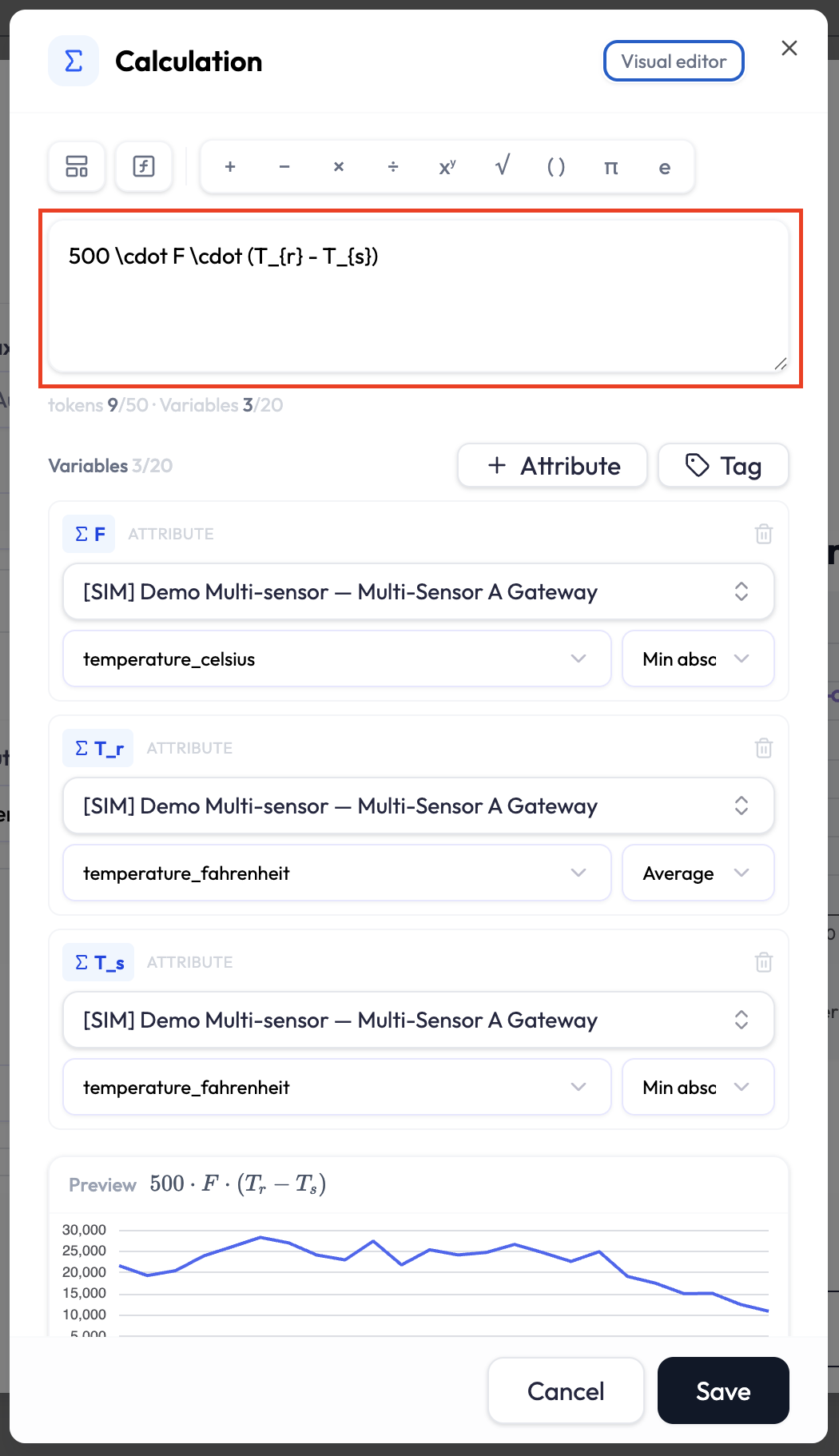
Raw LaTeX mode
The Raw LaTeX button swaps the typeset formula for its plain LaTeX text, and
back again with Visual editor. Anything you can build visually has a written
form, for example \frac{a}{b}, \sqrt{x}, or
\operatorname{clamp}(x, 0, 100). In the visual editor you can also press
\ and type a command directly. One deliberate exception: \bmod is
rejected — use the remainder function instead, because their behavior differs on negative
numbers.
After saving: edit and remove
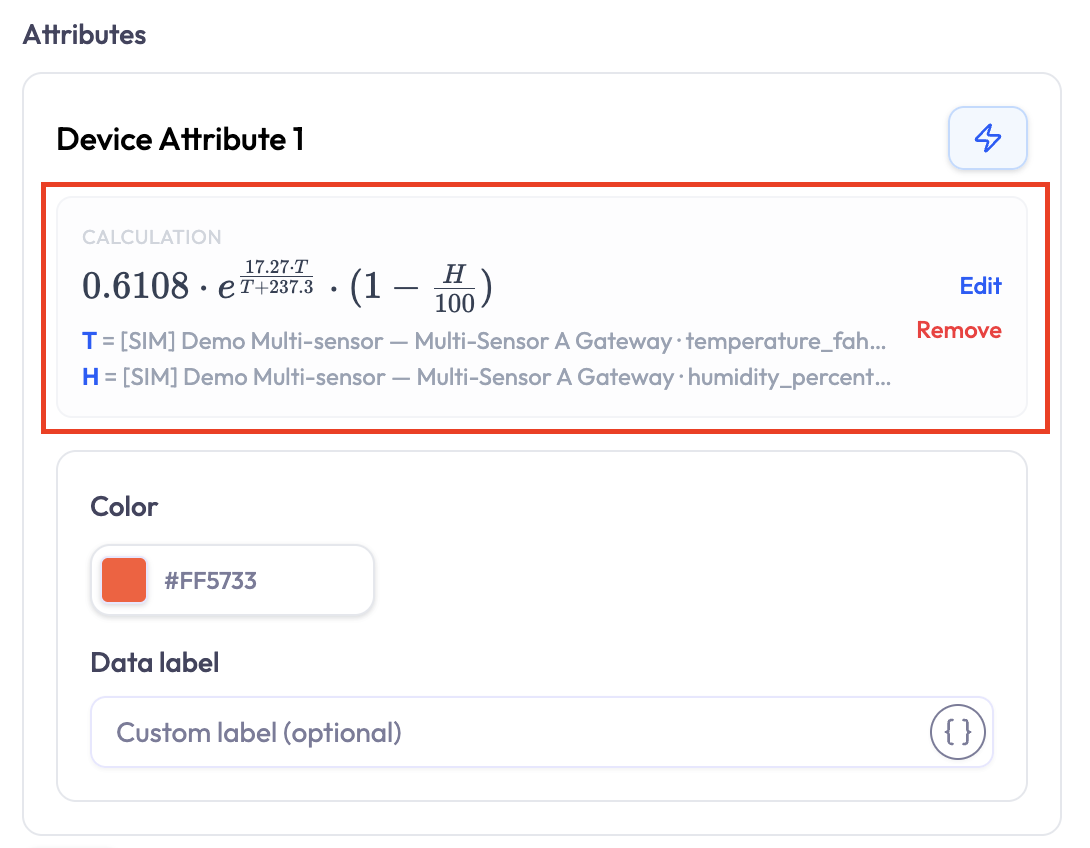
Saving the editor turns the Device Attribute section into a calculated series. The section now shows a CALCULATION box with the typeset formula, a legend of the variables and what each is bound to, and two links:
- Edit (or the ⚡ button, now highlighted) reopens the editor with the saved formula and variables.
- Remove deletes the formula and its variables and returns the section to a plain attribute. The first device attribute is kept, so the row is not left empty.
The calculation is stored with the widget, so remember to save the widget itself after closing the editor.
Limits, and how they are counted
The editor enforces a small set of limits as you build, and the server checks the same limits again on save. Because both sides count the same way, the editor never lets you build a formula the server would reject.
| Limit | Value |
|---|---|
| Variables per calculation | 20 — typed-in constants don’t count |
| Building blocks (tokens) per formula | 50 — a Σ counts its expanded terms |
| Nesting depth | 12 |
| Formula text length | 32,768 characters |
| Σ expansion | 25 terms |
-
Tokens are the building blocks of the saved formula: each variable, number,
operator, and function counts as one. The live
tokens n/50counter shows the total as you type. - Nesting depth is how deeply operations sit inside each other. A variable or a number is one level, and every operator or function sits one level above its deepest input: a + b is 2 levels, (a + b) × c is 3. Long chains of the same operation are flattened before counting, so adding many terms together does not add depth — only genuinely nested structure does.
On the dashboard
A saved calculation computes in the browser as readings stream in, in a background thread so the page stays responsive. Two behaviors are worth knowing:
- At most 12 calculations run at once per screen. Beyond that, extra calculated series pause and show a ⚠ badge whose tooltip reads “Calculation paused — too many on screen”, rather than silently dropping or slowing the page.
- Gaps are honest. A division by zero, an impossible result, or missing input data becomes a visible gap with a small ⚠ marker — never a made-up zero. On a single-status widget, an invalid latest value shows blank.