
Actions
An Action is one outbound response: a single alert paired with a single place to push a payload. When a threshold alert fires and you have configured it to push data to an integration or a Device Endpoint, that pairing is an Action. The Actions page, under Alerts inside an application, lists every one of them — what fires it, where it would send, and whether it has been approved to send at all.
Two things the approval does gate today, and the server enforces both for itself whatever this page shows. Enable is refused unless the Action carries a current approval. Test send is refused on the same basis, with one exception: a Sending unapproved Action can be tested without any approval on record, because it is already pushing to that destination on every firing.
Seeing the list needs permission to view alerts. Approving needs the separate Approve outbound actions permission. Enabling needs permission to edit alerts. Dry run and test send need permission to edit alerts and to view both integrations and Device Endpoints; they do not require permission to approve an Action. Everyone who can see the list can see the buttons. If you lack a permission, the action fails when you use its button. Administration has the full permission table.
Quick Start
The path from a freshly configured push target to a reviewed, approved and enabled one.
-
1Open Alerts > Actions inside your application. A newly configured target appears as Not approved.
-
2Select Dry run on its row. Read the destination and the rendered payload. Nothing is sent.
-
3Select Approve in that dialog. The state becomes Approved, off.
-
4Optionally select Test send to put one real payload on the wire and confirm the destination receives it.
-
5Select Enable and confirm. The state becomes Enabled, recording that this destination is reviewed and switched on.
The Actions List
One row per Action, covering both halves of the pairing: the alert that fires it and the target it pushes to.
| Column | What it shows |
|---|---|
| Trigger | The alert that fires this Action, with a one-line summary of its conditions beneath the name. |
| Target | The integration or Device Endpoint the payload goes to. The destination address is not shown here — open a dry run to see it. |
| Topic | The topic the payload is published under. It is empty where the target’s own configured topic is used rather than an override. Two Actions sharing a target differ only by topic, so this column is what tells them apart. |
| Template | A summary of the payload template. An em dash means this target has no template of its own and sends the alert type’s default body. |
| State | One of the six states below. |
| Last outcome | What the push queue last recorded for this target. See Last Outcome below. |

The Six States
An Action’s state records its approval and enablement. It does not control automatic pushes yet; a configured target can still send when its alert fires, regardless of the state shown here.
| State | What it means | Approved to send? |
|---|---|---|
| Not approved | Nobody has reviewed this destination and payload yet. This is where every new push target starts. | No |
| Approved, off | Reviewed and approved, but the switch is off. This is the only state Enable is offered from. | Yes, switched off |
| Enabled | Approved and switched on. | Yes |
| Config changed | It was approved, and then the configuration moved underneath that approval — the template, the target or the topic changed. The approval no longer covers what would be sent, so it has to be re-approved. | No, re-approval needed |
| Sending unapproved | The legacy exemption. This push target predates the approval requirement and was grandfathered in, so it keeps sending even though nobody has reviewed the destination. Dry run it and approve it to bring it under the same gate as everything else. | No, and sending anyway |
| Retired | History. The alert or the target is gone, so there is nothing left to send. Retired rows are not listed. | Cannot send |
Dry Run
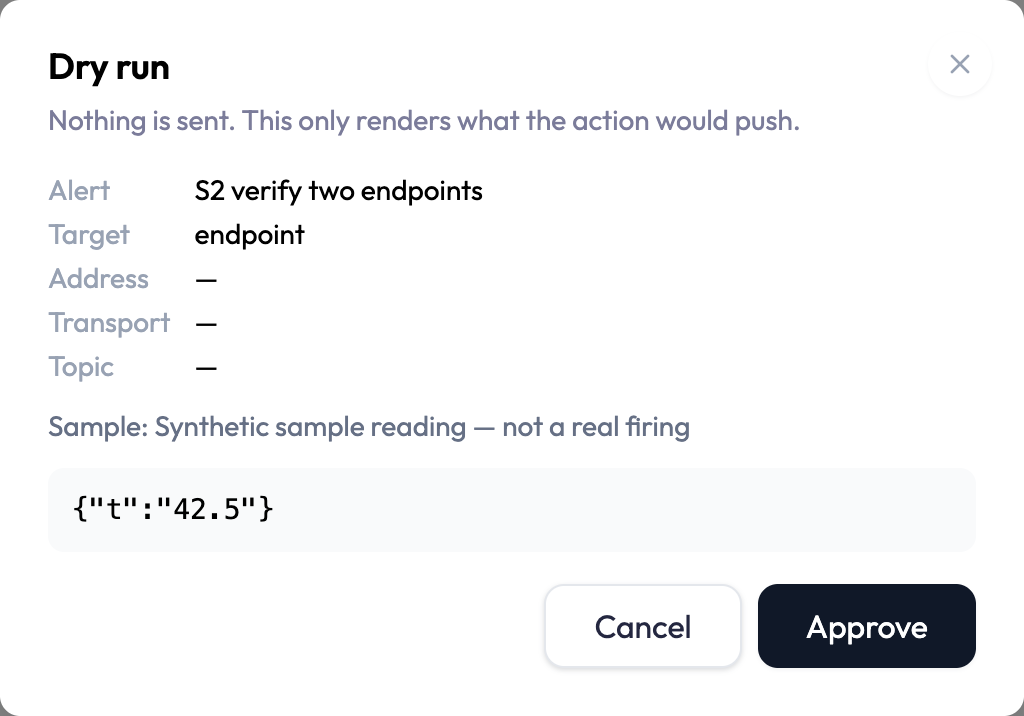
A dry run shows a sample of this Action’s payload without sending it.
Select Dry run on any row. The dialog shows the alert, the target’s name, its address, the transport and the topic, followed by the rendered payload. The address appears only here: it is deliberately kept out of the list so that the page does not hand every destination URL to anyone who can read alerts.
- Sample: the alert event uses a labelled synthetic sample. The dialog names it so you can tell it apart from a real firing.
- No template of its own: when the target has no payload template, the dialog says so and the rendering is the alert type’s default body.
-
Tokens resolve against live data: the sample reading is synthetic, but any
{{tag.…}}or{{device.…}}token in your template is resolved to its real current value, so a token that cannot be resolved shows up here rather than on the first real firing.
Test Send
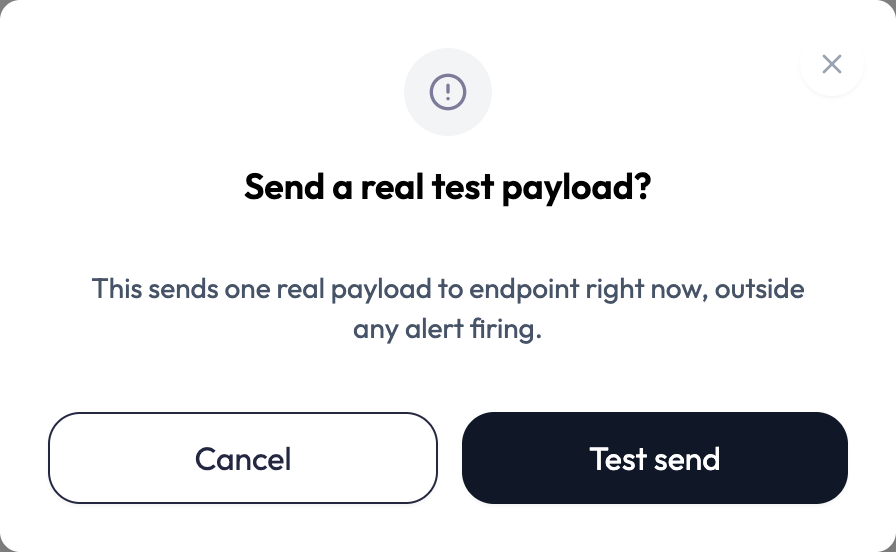
Test send transmits one real payload to the real destination, right now, without waiting for an alert to fire.
This is the only way an Action sends outside a firing: everything else an Action does happens because its alert fired. The confirmation dialog names the target, and the topic where there is one, before anything leaves the platform.
{{tag.…}} or {{device.…}}, those
tokens use live values, which may include device readings. The sample time and live values can
change between a dry run and a test send. Use the dry run to check the payload’s structure and
destination, but do not expect the test send to contain identical bytes.
Test send is available from Enabled, Approved, off and Sending unapproved. It is refused from Not approved and Config changed, which ask you to approve or re-approve first, and from Retired, which can no longer send at all. The reason is shown beneath the button.
When a test send is refused
Two different refusals both mean “nothing was sent”, and they are not the same problem:
- Your account’s push limit for this minute is used up. The account-wide push budget from your plan is exhausted. Other pushes across the account are competing for the same allowance.
- Too many test sends in the last minute. This is the page’s own throttle, ten test sends per minute, and it is about your clicking rather than your plan. Dry runs have their own separate budget of ten per minute, so previewing does not spend your ability to test.
Last Outcome
What the push queue last recorded for this target, and the three different ways that can be blank.
| Reading | What it means |
|---|---|
| Accepted by the queue | The delivery queue took the job. This is not a receipt from the destination — see the note below. |
| Failed | The push was attempted and did not succeed. |
| Skipped — the target was not eligible | The destination could not receive it, typically because the integration or endpoint was deleted or disabled. Recorded on every firing while that stays true. |
| Outcome unavailable | The outcome store could not be read for this listing. The Action’s history still exists; this page just could not see it. |
| An em dash | Several Actions share this target and differ only by topic, so a recorded outcome cannot be attributed to any one of them. Hover the cell for the explanation. |
| Empty | Nothing has ever been pushed from this Action. |
The column shows whichever of the two is newer, a real firing or a test send, and a firing wins a tie. Each outcome is labelled with where it came from — From a real firing or From a test send — along with the time it happened, so a reassuring outcome from your own test is never mistaken for a successful production push. An outcome recorded before this labelling shipped carries no source and is treated as a real firing.
Actions and Data Push
Both send a payload to an endpoint. They differ in what starts the send.
An Action is event-driven: it sends because an alert fired, or because you pressed Test send. Data Push is on demand: you type a payload and send it yourself, from the Data Push screen or from a dashboard widget.
They share budgets, but not the same ones, and the difference matters when you are working out why something was refused:
- The monthly payload push allowance is spent by every real firing, whether the target is an integration or a Device Endpoint, and by every Data Push you send yourself.
- The per-minute push rate is shared with Data Push. On a real firing it is spent by Device Endpoint targets only; an integration target does not touch it, so a busy integration-only Action does not eat into what Data Push can send.
- A test send always spends one point of the per-minute rate, whichever kind of target it goes to, and none of the monthly allowance.
Limits and Good to Know
Every number on this page, in one place.
| Item | Value |
|---|---|
| Push targets per alert | 5 |
| Test sends | 10 per minute, per user |
| Dry runs | 10 per minute, per user, budgeted separately from test sends |
| Monthly payload push allowance | Your plan’s monthly allowance, spent by every real firing to either target kind |
| Per-minute push rate | Your plan’s Data Push rate, account-wide. On a firing, spent by endpoint targets only; a test send always spends one, whichever kind of target it is |
| Rows per page | 25 |
| Retired Actions | Not listed |
- Approving requires its own permission, so an administrator can let somebody edit alerts without letting them clear an approval.
- A dry run resolves tag and device tokens to their real current values, so being able to preview a payload is a data-reading right, not just a formatting one.
- If the list fails to refresh in the background, the rows stay on screen with a warning rather than disappearing, so an answer you were waiting for is not taken away.