

Ask AI
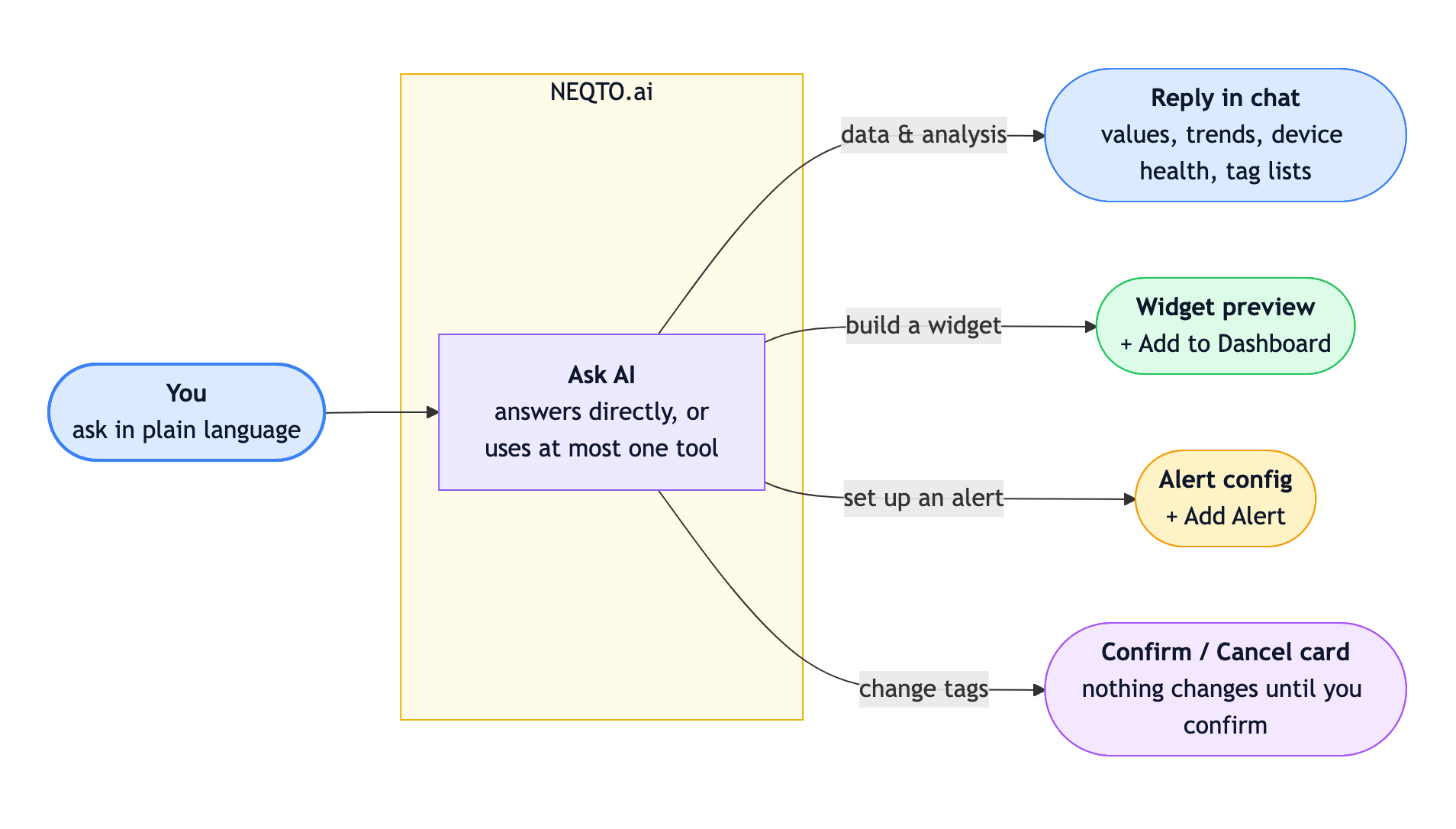
Ask AI is the assistant built into NEQTO.ai, and you reach it in two places. Open the chat panel and ask a question about your device data. Or, inside a form, describe what you want in plain language and the assistant fills that form in front of you. Both work within your current account or application scope.
Quick Start
Open the chat and ask one clear question.
-
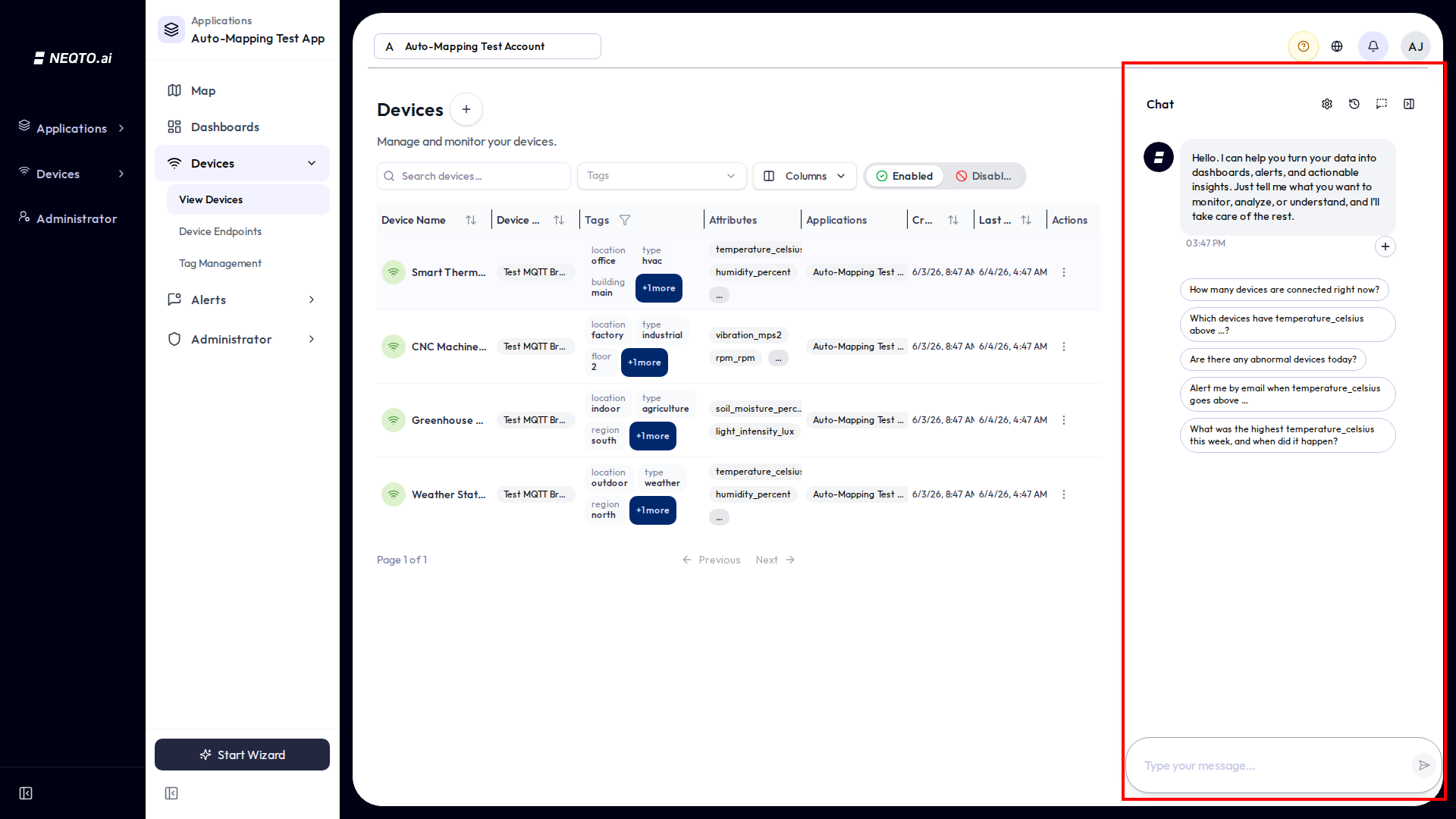
1Select Ask AI in the lower-right corner. The main chat opens as a sidebar.
-
2If the question concerns specific devices, select + below the welcome message and choose them. Device selection is optional.
-
3Enter the question. Include the metric, device, and time period when they matter. For example, “What was the highest temperature this week, and when did it happen?”
-
4Review the reply. For a widget or alert, select the action button, check the prefilled editor, and save.

What the AI Can Actually Do
The assistant works in two modes: answering questions in the chat, and drafting into a form you have open. Both read only the data your permissions already allow, and a single request may use more than one lookup before the reply appears.
| Request | What Ask AI returns | Example |
|---|---|---|
| Look up readings | Current or exact-time values, when a value or state occurred, or devices whose values match a condition. | “Which devices have humidity above 70?” |
| Find a high or low | The maximum or minimum value, with its time and device. | “When was the lowest humidity yesterday?” |
| Analyze a period | Trends, averages, totals, reading counts, and event or state-change counts. | “Summarize the temperature trend for the last 7 days.” |
| Check devices | Device counts and lists, connection state, available attributes, and device health based on alert events. | “Which devices are offline or have active problems?” |
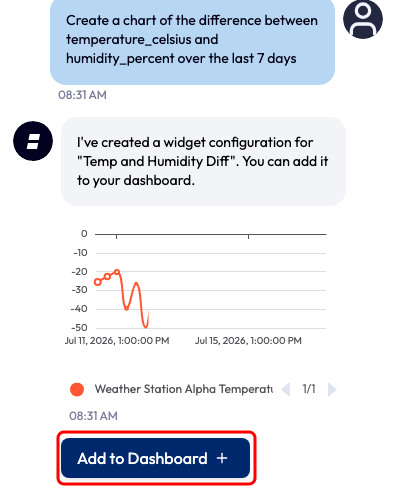
| Draft a widget | An inline preview and an Add to Dashboard button. The main chat supports standard, calculated, and multi-series widgets. | “Chart the difference between temperature and humidity this week.” |
| Draft an alert | A prefilled alert with conditions, severity, recipients, and optional lock settings. | “Email the on-call group when temperature exceeds 75.” |
| Manage tags | A tag list, or a proposal to create, edit, or delete tags or to add one to a device. Changes require confirmation. | “Create tags for floors 1, 2, and 3.” |
| Find product help | The page and action used to complete a task in NEQTO.ai. | “Where do I add a device endpoint?” |
Drafting into a form
Several forms carry an assistant field at the top, with a placeholder naming what it can draft — Describe when you want to be alerted… in the Alert dialog, for example. Enter a description and select the button beside the field, or press Enter. Use Shift+Enter for a new line.
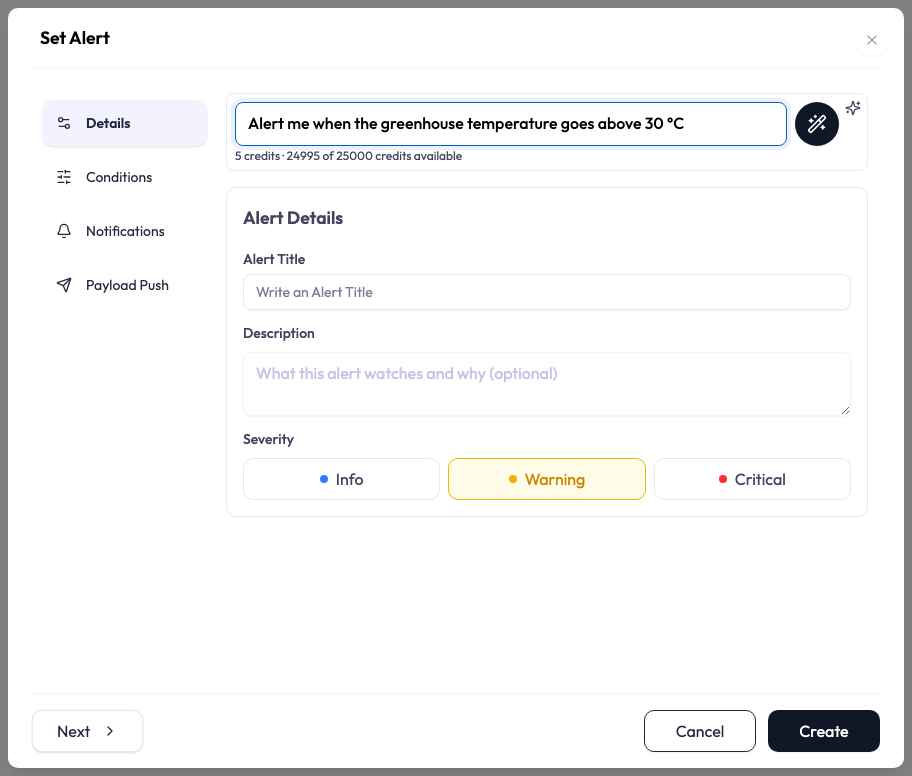
Drafting behaves the same way everywhere, though not every form shows every signal below.
| On screen | What it tells you |
|---|---|
| AI-inferred beside a field label | The assistant worked that value out for itself. A field it filled from something you said is not marked, so review the whole form rather than only the marked fields. |
| Your own entries were kept for N field(s) | Anything you had already typed was left as you wrote it, even where the draft proposed something different. |
| Applied | The assistant filled in the form. |
| No changes | The assistant found nothing new to fill in. |
| Question | The assistant asked in Ask AI rather than guess. Answer it in the chat panel, or select one of the buttons if it offers choices. The form is filled in after you answer. |
| Not sent | The assistant did not take the request, so nothing was sent. |
Most forms show these labels as a chip beside a short status message.
Where the assistant appears
In these forms, Ask AI fills fields for you.
| Where | What it is called | What it does |
|---|---|---|
| Alert dialog | Draft an alert | Fills the conditions, severity, and notification recipients. |
| Widget Editor | Draft a widget | Fills the widget type, attributes, and options. |
| Integration wizard | Draft an integration | Fills the connector settings from a description of the source. |
| Report dialog | Draft a report | Fills the report’s contents and schedule. |
| Simulator | Describe a simulation | Proposes a device template, device count, and publish interval. |
Everywhere else it is a button that opens the chat with the right question already framed.
| Where | What it is called | What it does |
|---|---|---|
| Endpoint and integration wizards | Assisted Setup | Explains the step you are on. See Assisted Setup. |
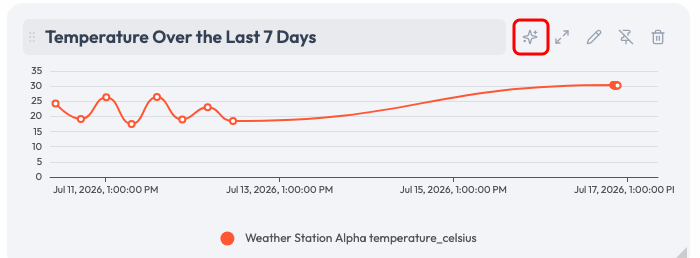
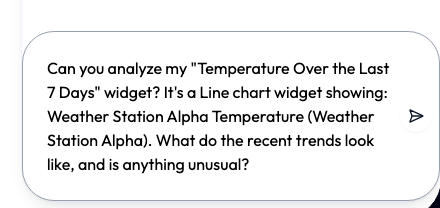
| Dashboard widget | Ask AI | Opens the chat with a question about that widget already entered. |
| Alert history | Investigate with AI | Reviews an alert event and records the finding against it. See Alerts. |
| Beside the screen | Assistant suggestions | Offers something unprompted. See Assistant Suggestions. |
A control appears only where your permissions and your account allow it: every one of them needs Ask AI access, drafting an alert also needs the same permission as creating one by hand, and some of this is switched on per account. Without Ask AI access, these controls are hidden, just as the chat is. The assistant is still being extended, so you may also meet a control that is present but greyed, reading Not available yet. The form still works the ordinary way.
Answers from what is on your screen
On supported pages, Ask AI receives the page name and a limited summary of visible data. This lets it answer questions such as “What does this chart show?” without making you restate the chart. It does not inspect every field on every page. If the page summary is not enough, it can query data you have permission to view or ask for more detail.
How to Phrase a Good Request
Use the device and attribute names shown in NEQTO.ai. Add a time period and desired result when needed.
| Include | Example |
|---|---|
| Attribute | temperature_celsius, humidity, connection state |
| Device or scope | Boiler Room Sensor, selected devices, all devices in this application |
| Time period | today, yesterday, last 3 hours, this week |
| Desired result | current value, highest value and time, summary, chart, gauge, or alert |
You can use common shorthand such as “temp,” but exact names help when the account has similar attributes or devices. If you omit a time period, Ask AI chooses one based on the request and the available data.
The same advice applies to a drafting field. Naming the attribute, the devices, and the threshold leaves the assistant less to infer, which means fewer AI-inferred fields for you to check and fewer follow-up questions before the form is filled in.
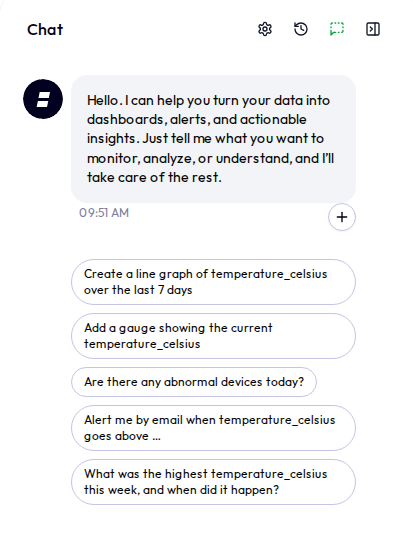
Devices (Main Chatbot)
Device selection gives Ask AI a clear scope before you send the first question.
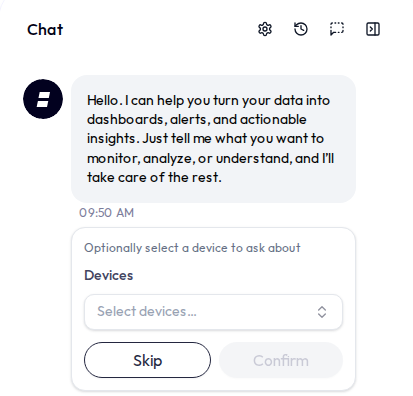
- Select + below the first message to choose one or more devices. References such as “this device” then use that selection.
- The selector lists devices from the current application when you are inside one. You can skip selection and name devices in the message instead.
- There is no separate date picker in the current chat. State the period in the message when it matters.
Turning a Reply Into a Widget or Alert
Ask AI prepares the configuration. You review and save it in the standard editor.
This is drafting the other way round. Instead of describing what you want inside a form you have already opened, you ask in the chat and the reply carries a button that opens the editor with the answer in it.
A widget or alert offered in the chat can be added only in the application where you asked for it. In another application, ask again there to get one you can add. On an account-level page, the offer asks you to open an application first.
Add to Dashboard (main chatbot)
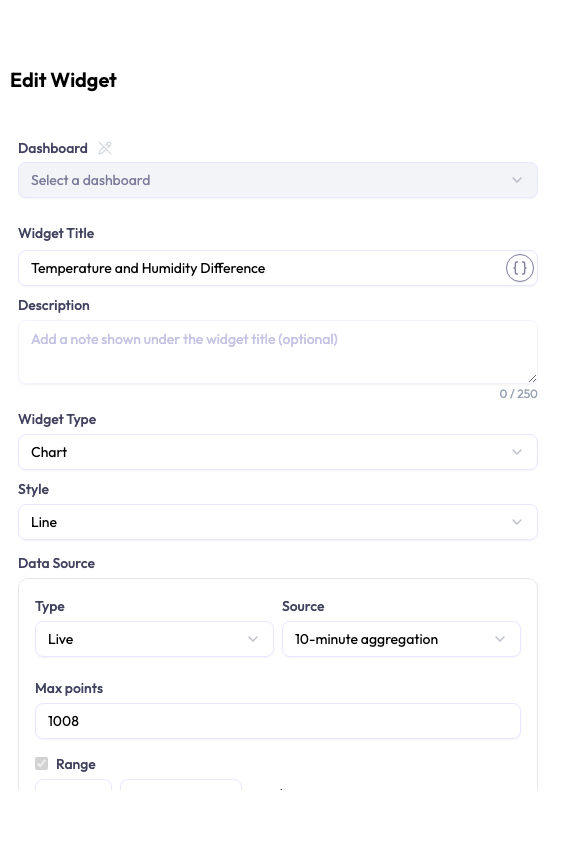
Ask for a chart, gauge, label, table, or another supported widget. The reply includes a preview and an Add to Dashboard button when you have widget-create permission. Select the button, choose a dashboard in the Widget Editor, review the settings, and save. After a successful save, that message is marked as completed.
The main chat can also prepare calculated widgets, such as a difference, sum, or ratio, and charts with more than one series.
Add Alert (both chatbots)
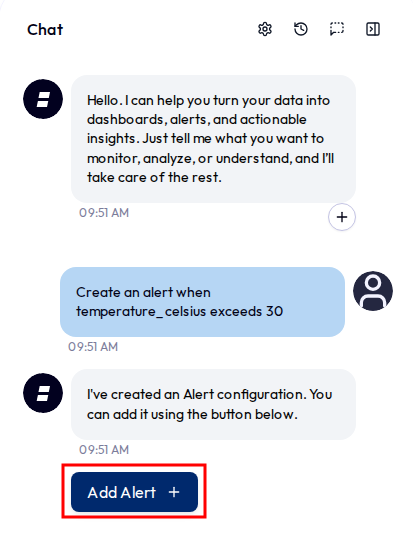
Describe the condition and notification recipients. The reply includes an Add Alert button and a parsed configuration. Select it to open the Alert dialog, then review and save. The backend checks alert-create permission when you save.
Managing Tags
In the main chat, you can list, create, edit, and delete account or application tags.
It proposes, you confirm
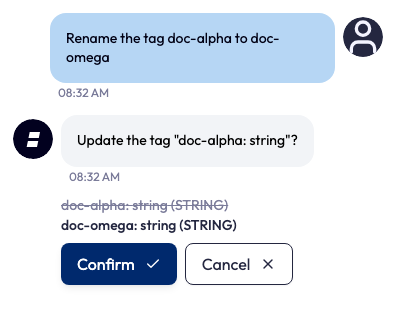
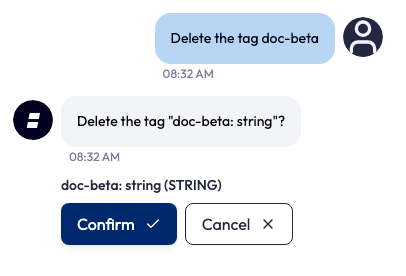
Ask AI shows a Confirm/Cancel card for every tag change. The card lists the proposed values and types. Select Confirm to apply the change or Cancel to leave the tags unchanged.
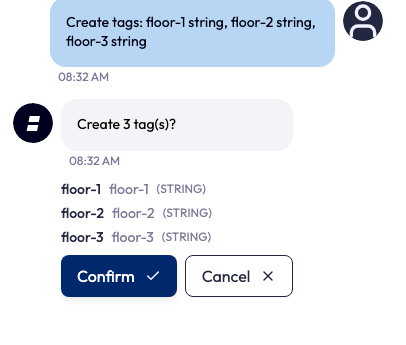
Create several at once
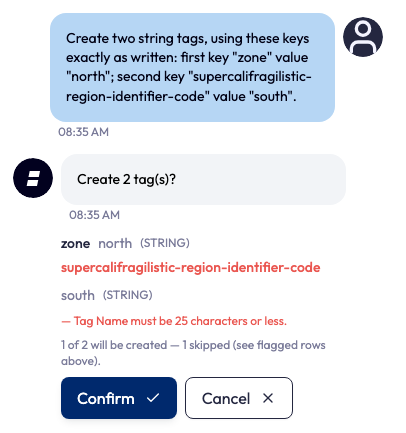
Paste a list or enter comma-separated tags to propose up to 50 in one message. Ask AI assigns a name, value, and type to each row. Tag names can contain up to 25 characters. The confirmation card flags invalid rows and excludes them from creation. If the list reaches 50 rows, send any remaining rows in another message.
Rename, edit, or delete
An edit proposal shows the current tag and the proposed value. A delete proposal identifies the exact tag to remove. Both actions wait for confirmation.
Add a tag to a device
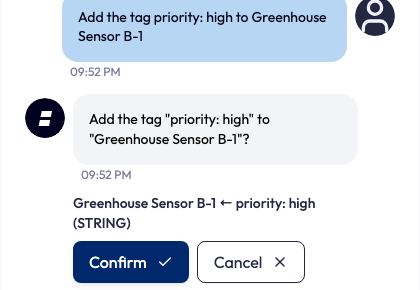
Name a device and an existing tag, for example “Add the tag floor: 2 to Boiler Room Sensor.” Ask AI asks you to confirm before it adds the tag.
Just looking
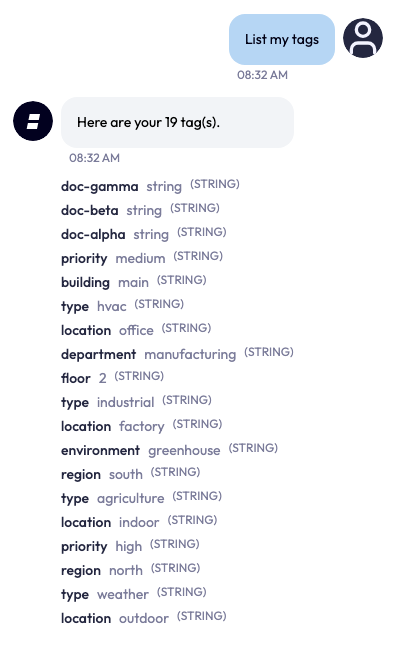
Asking Ask AI to list tags is read-only. The reply shows each tag’s name, value, and type without confirmation controls.
Assistant Suggestions
The assistant sometimes offers something without being asked. The offer appears as a small card beside the Ask AI control, or inside the chat panel when that is already open.
A suggestion names what prompted it — most often that a new device has started sending data — and carries a short row of actions. You have three choices:
- Take an offered action. Each button starts that piece of work with the suggestion’s devices already in hand. The offers are drawn from Create an alert, Build a dashboard, Add to a System, and About anomaly detection, and are worded for one device or for several depending on what the suggestion found.
- Open it in Ask AI. Select the message itself to carry the suggestion into the chat as a question you can edit before sending. On the card beside the screen, Continue in Ask AI does the same.
- Dismiss it. Dismiss suggestion removes that card.
Build a dashboard opens the dashboard wizard with the suggestion’s devices already selected, and offers to plan the dashboard with the assistant from there. The dashboard itself is covered in Dashboards.
Assisted Setup
Inside the Device Endpoint and integration wizards, Assisted Setup explains the step you are looking at.
Select it and the assistant writes the question for you and sends it — you do not type anything. The question names the wizard and the step, so the answer is about the decision in front of you rather than about the product in general. It appears in the chat panel like any other message, so you can read exactly what was asked and carry on the conversation from there.
Answers come from the NEQTO.ai product documentation and cite the pages they came from. Every step of both wizards offers it, from choosing how to add an endpoint through to testing an integration’s connection.
The question includes:
- the wizard and the step you are on
- choices you made on that step, such as the endpoint’s name, connection type, and authentication method, or the integration’s connector, protocol, direction, and name
- after a failed connection test, the failure message
Nothing else from the form is included.
Research on the Web
When an answer is not in the product documentation, the assistant can offer to look it up on the public web instead.
The offer appears in the chat under the heading Not in the documentation, with Research this and No thanks. Declining sends nothing and costs nothing. Accepting uses your account’s AI credits, and the offer states how many before you agree. It also shows the exact text that will be sent to the web search.
Results arrive as their own block, headed From the public web — not product documentation and followed by Researched sources, the pages used, and Searches run, the searches performed to find them.
A source row names the site the material came from. Where the link does not go straight there, the row says so — via Google, or the name of whichever host it actually goes through. Follow it to see the page itself.
Research is switched on per account. If it is not enabled for yours, the assistant says the documentation does not cover your question and stops there rather than offering to look.
If a search cannot be completed, the assistant says so and no credits are used. A search that completes uses the amount the offer stated, even if it finds no usable source. In that case you get no researched answer and no source list.
AI Credits
Ask AI uses the AI credits included with the account’s plan.
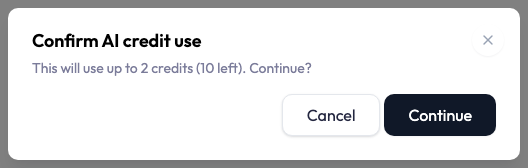
For where prices show and what happens when credits run short, see AI usage in Limits and Good to Know. Assisted Setup and the Simulator’s drafting field are charged as chat messages and show your remaining credits instead of a price. The app asks you to confirm when a quoted action could use 50 credits or more, or 20% or more of your remaining credits.
Settings, History, and Sessions
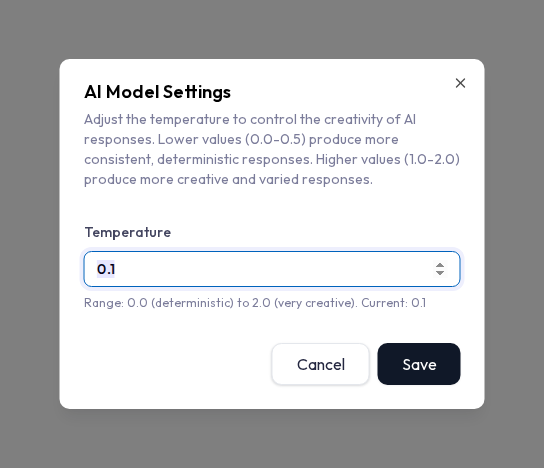
You set Temperature in AI Model Settings. Ask AI saves chat sessions for the account, so other account users see the same History.
Temperature (creativity)
Open AI Model Settings from the settings icon to change Temperature. The accepted range is 0.0 to 2.0, and the default is 0.1. Lower values produce more consistent wording. Higher values allow more variation. The browser stores this setting.
Chat history
Ask AI creates a saved session when you send the first message. Open History to see sessions with the newest activity first. Select a session to restore its messages and continue the conversation.
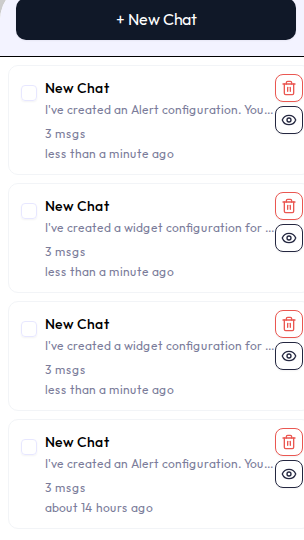
- New Chat starts a new conversation without deleting the previous one.
- You can delete one session or select several and delete them together. Deletion requires confirmation and cannot be undone. Because History is shared across the account, deleting a session removes it for other account users too.
- Sessions and messages are stored for the account, not only in the current browser. Other account users with Ask AI access can see the same history.
- Sidebar open state, width, and Temperature are browser settings and do not follow you to another browser.
Connection
Ask AI needs a live connection while it processes a request.
- A typing indicator or activity label appears while Ask AI works. Some replies appear a piece at a time, followed by the completed message.
- If the connection fails, the chat reports the failure and attempts to reconnect. Send the message again if no reply arrives.
- Reloading during a request can interrupt the reply. The session remains in History, but the unfinished answer may be missing.
- Some page changes reset the messages currently shown in the panel. Reopen the saved session from History to continue.
Limits and Good to Know
Plan limits, permissions, and application scope still apply in chat.
| Limit | What it means |
|---|---|
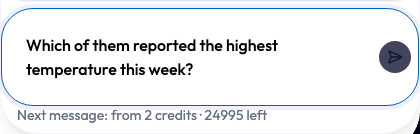
| AI usage | Ask AI uses your account’s AI credits. When your plan uses AI credits, the line under the chat input shows the minimum cost of the next message and your remaining credits. Lookups add to that cost. AI buttons and drafting fields show a price or estimate before they run. Requests stop when available credits cannot cover the cost. They resume when credits become available, such as after renewal or an upgrade that increases the allowance. Billing shows your balance and the current period’s Resets on date; see Administration. |
| Message length | A message can be up to 8,192 characters. The input shows a counter as you near the limit. A longer message shows a notice and cannot be sent. |
| Demo limit | The public demo may limit the number of questions in a session. The displayed error gives the applicable limit. This does not apply to a normal signed-in account. |
| Ask AI permission | You need Ask AI access to see the chat, a widget’s Ask AI control, or any other AI control, such as a drafting field, Investigate with AI, or Assisted Setup. Without it, these controls are hidden. |
| Action permissions | Widget creation requires widget-create permission. Alert permission is checked when you save the alert. Tag creation, editing, and deletion require the corresponding permission for the tag’s account or application scope. |
| Application scope | Inside an application, Ask AI limits device and tag operations to that application’s scope. Ask AI is also available on account-level pages, such as Applications and Devices. There, the chat header shows Answering about and an application when your Ask AI access comes from that one application. |