
Tags
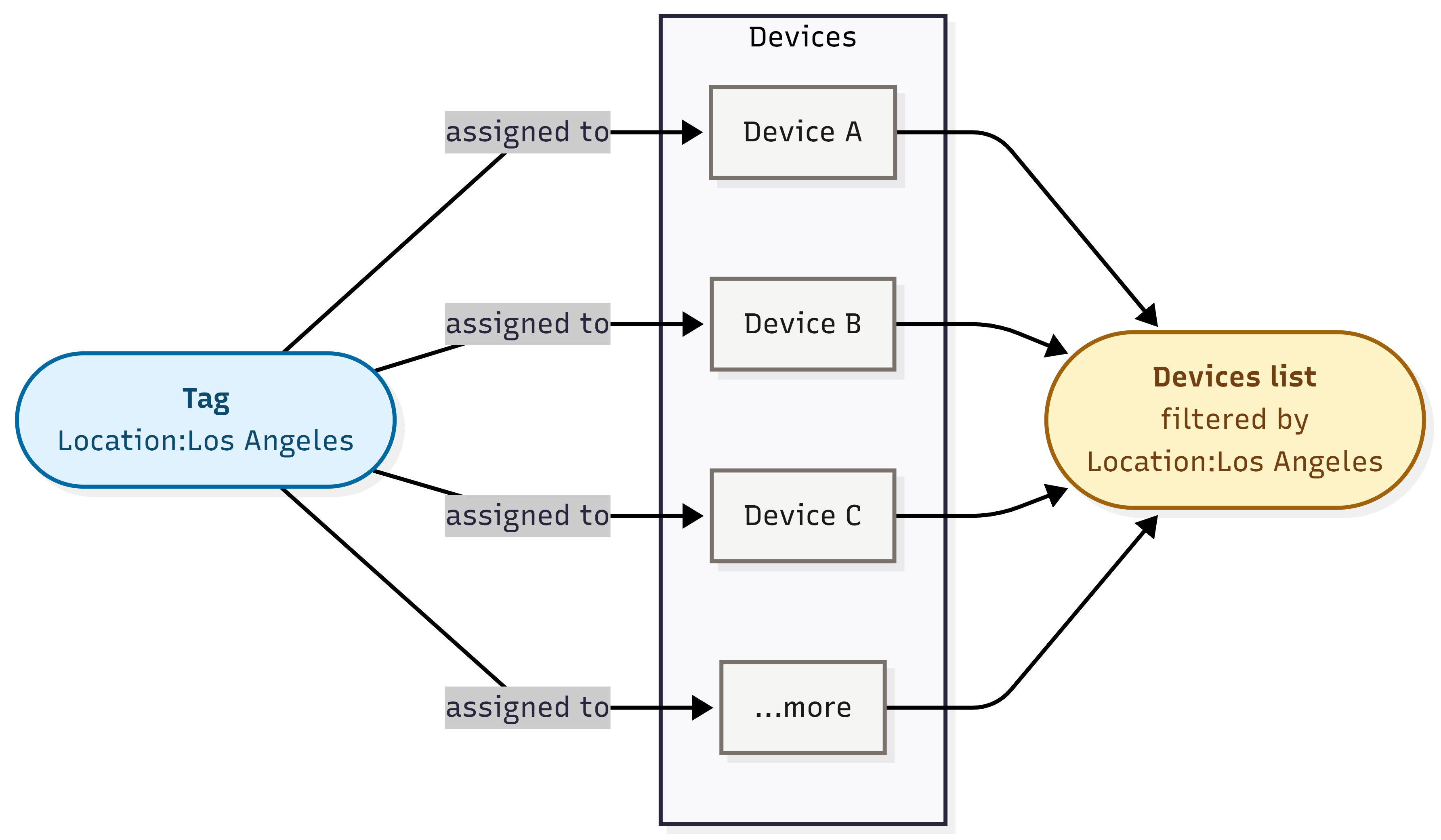
Tags are simple key:value labels you attach to devices so you can group, find,
and filter them. For example, Location:Los Angeles or floor:3 can
group devices by site, role, owner, or another category. Create a tag once, then reuse it across
many devices.
Quick start
Use these steps if you are already familiar with NEQTO.ai.
-
1Open Tag Management and click Create Tag. Enter a Tag Name, such as
Location. Choose a Type, which defaults to String, and enter a Tag Value, such asLos Angeles. -
2Open an existing device and select the tag from the Tags field in General Info. One device can have many tags.
-
3Go to the Devices list and use the Tags filter to narrow it down. Pick several tags and the list shows only devices that have all of them.
What a tag is
Every tag has a Tag Name, Type, and Tag Value. All three are required. The Tag Name is the key. The Type controls how the platform stores and validates the value. Choose String, Float, Int, Boolean, Array, or JSON. The Value field changes to match the Type. Only String values accept free-form text. The platform validates the other Types when you save.
| Part | UI label | Required | Limit |
|---|---|---|---|
| Key | Tag Name | Yes | Up to 25 characters. |
| Type | Type | Yes | One of String, Float, Int, Boolean, Array, JSON (default String). |
| Value | Tag Value | Yes | String up to 25 characters; Array and JSON up to 500; Boolean is a toggle. Int and Float are limited by the size of the number rather than the number of characters. See the note below this table. |
- Free-form text. The Tag Name and String values accept any text up to the limit. The platform validates the other Types as described below. It trims leading and trailing spaces.
-
Uniqueness. You cannot create two identical tags in the same scope. A tag is
a duplicate when its Tag Name, Type, and Tag Value match an existing tag in the same
account and, when set, the same application. The same name and value can exist as different
Types. For example,
Reading:1can be both an Int and a String. Creating a duplicate returns “Tag with this key and value already exists for this organization.” -
Reuse the same key. Because the Tag Value is part of a tag’s identity,
Location:Los AngelesandLocation:Tokyoare two separate tags. That is the intended way to build out a dimension like “Location”.
- String. Free-form text up to 25 characters.
-
Int. A whole number limited by its value rather than its character count.
The largest value is about 9 quadrillion, exactly
9007199254740991. The same limit applies to negative values. - Float. Any decimal the platform can represent, up to about 1.8 × 10³⁰⁸. A long decimal may be accepted when a whole number with the same number of characters is not.
-
Boolean. A toggle with a value of either
trueorfalse. -
Array and JSON. Valid JSON up to 500 characters and at most 10 levels deep.
The platform rejects unsafe keys such as
__proto__.
3.14159265358979311599796346854 is stored as
3.141592653589793. The tag still saves, but its stored value differs from the value
you entered. The platform shows very large or very small numbers in scientific notation. To keep
a number exactly as entered, use a String tag.
Tag Management
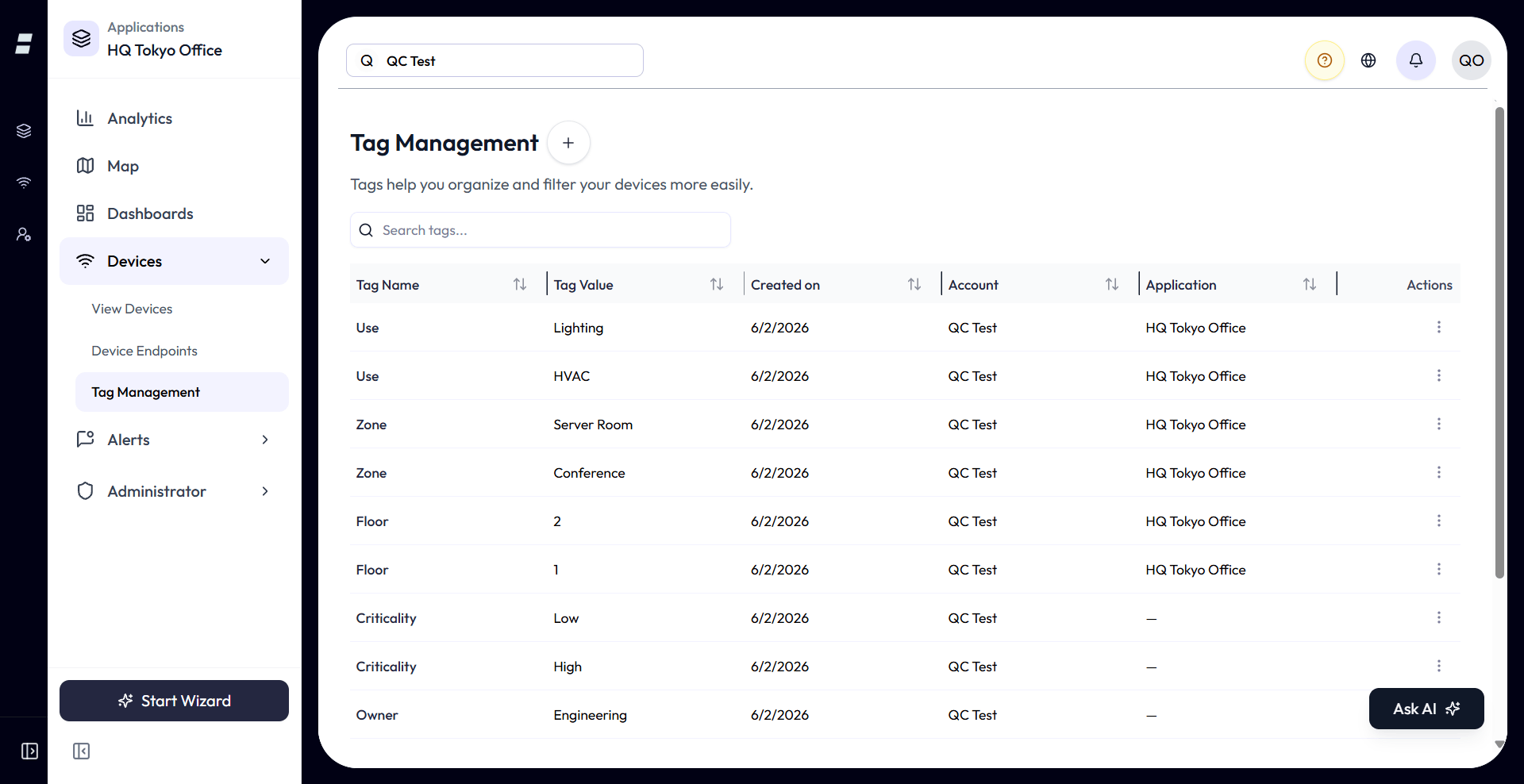
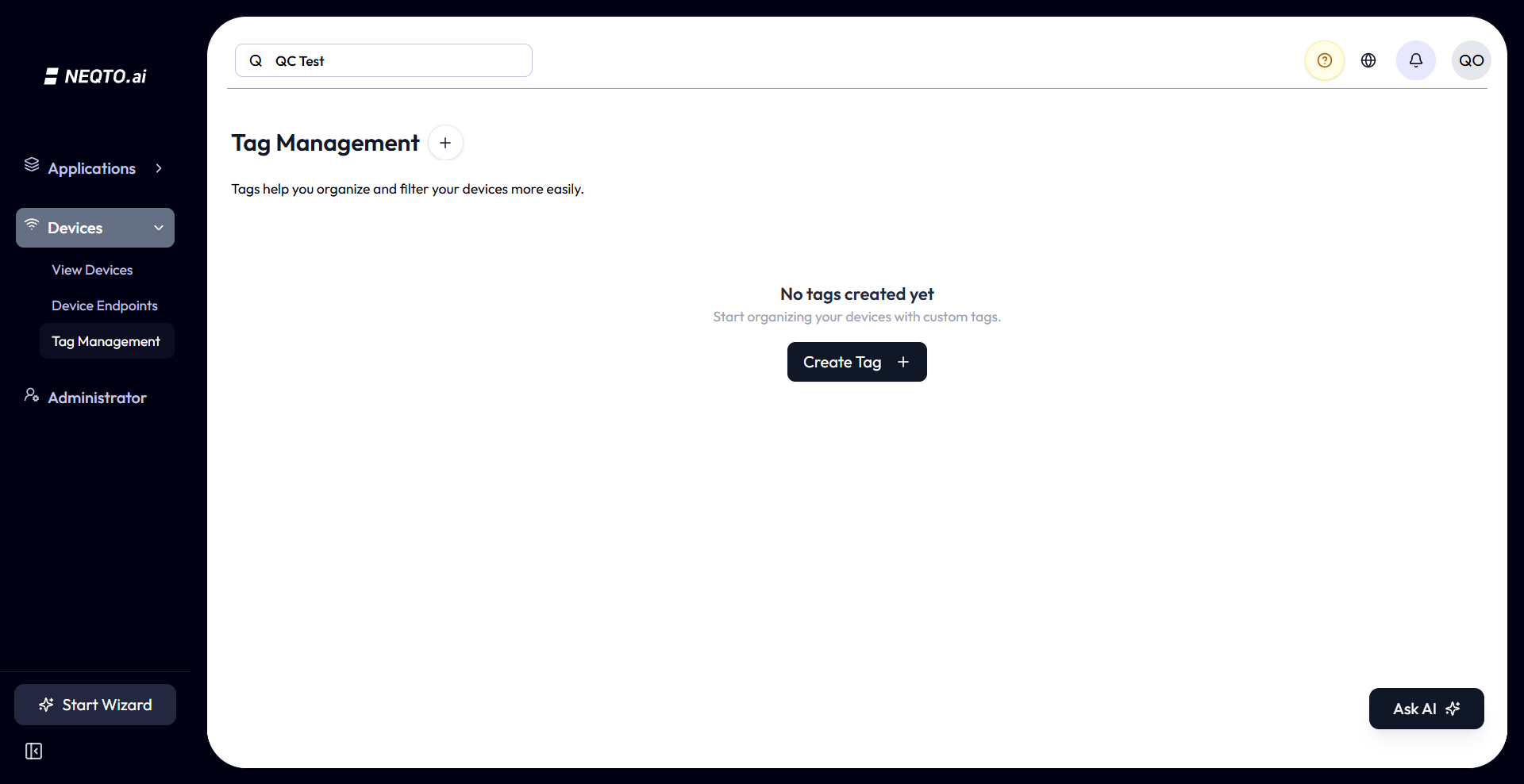
Use Tag Management to create, edit, and delete tags. The page title is Tag Management, and its description is “Tags help you organize and filter your devices more easily.”
The list view
| Column | What it shows |
|---|---|
| Tag Name | The key, shown in the highlight colour. |
| Tag Value | The value. |
| Type | The value’s data type: String, Float, Int, Boolean, Array, or JSON. |
| Created on | The date the tag was created. |
| Account | The account the tag belongs to. |
| Application | The application the tag is scoped to, or a dash for account-level tags. |
- Search filters the list by Tag Name or Tag Value. Matching is case-insensitive and can occur anywhere in the text.
- Sort by any column, including Created on, Account, and Application.
- Paginated at 10 rows per page by default.
- Column widths are resizable and your choice is remembered.
Account-level vs. application tags
Tag Management appears in two places. Each has a different scope:
| Where you open it | What you see | New tags are |
|---|---|---|
| The top-level Tags page | Only account-level tags (not tied to any application). | Account-level. |
| Inside an application | That application’s tags plus the account-level tags. | Scoped to that application. |
Create a tag
-
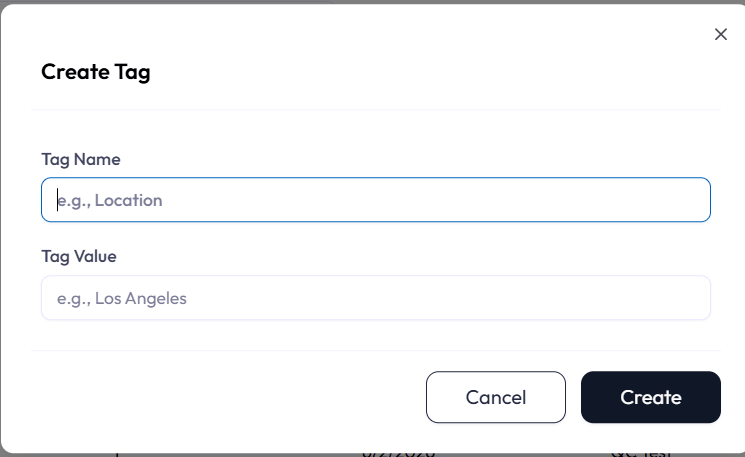
1Click Create Tag.
-
2Enter a Tag Name, choose a Type, and enter a Tag Value. The default Type is String. The Value field changes with the Type. Int and Float use a number field, Boolean uses a true or false toggle, and Array and JSON use a JSON editor. Tag Name is limited to 25 characters. A String value is limited to 25 characters, and Array or JSON is limited to 500. Int and Float are limited by value rather than character count. See What a tag is for the numeric limits.
-
3Click Create. The platform shows Tag created successfully and adds the tag to the list.
Edit a tag
Use the row’s actions menu and choose Edit. You can change the Tag Name, Type, and Tag Value. The same length and uniqueness rules apply. Editing a tag updates every device that carries it. A new value reaches every alert formula that uses the tag, and every widget the next time it loads. While a widget or alert formula uses a numeric tag, you cannot change the tag’s Type to a non-numeric one.
Delete a tag
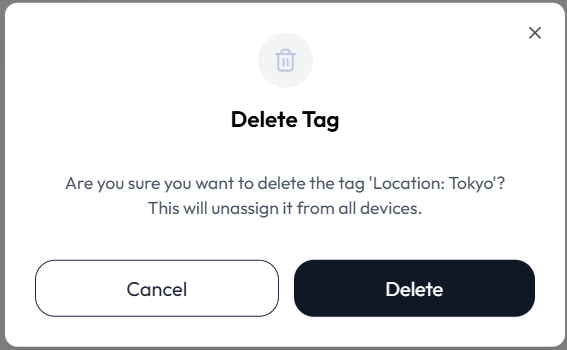
From the actions menu, choose Delete. The confirmation warns “This will unassign it from all devices.” Deleting a tag detaches it from every device that had it. It does not delete the devices. A tag that a widget or alert formula uses cannot be deleted; remove it from the calculation first.
Assigning tags to devices
Assign tags from an existing device’s General Info section, or ask the assistant. The Add Device wizard does not include a Tags field. It only lets you choose a device endpoint and detect the device.
When adding a device
The current Add Device wizard does not include a Tags step. It walks you through choosing a device endpoint and detecting the device. Assign tags after the device exists.
On an existing device
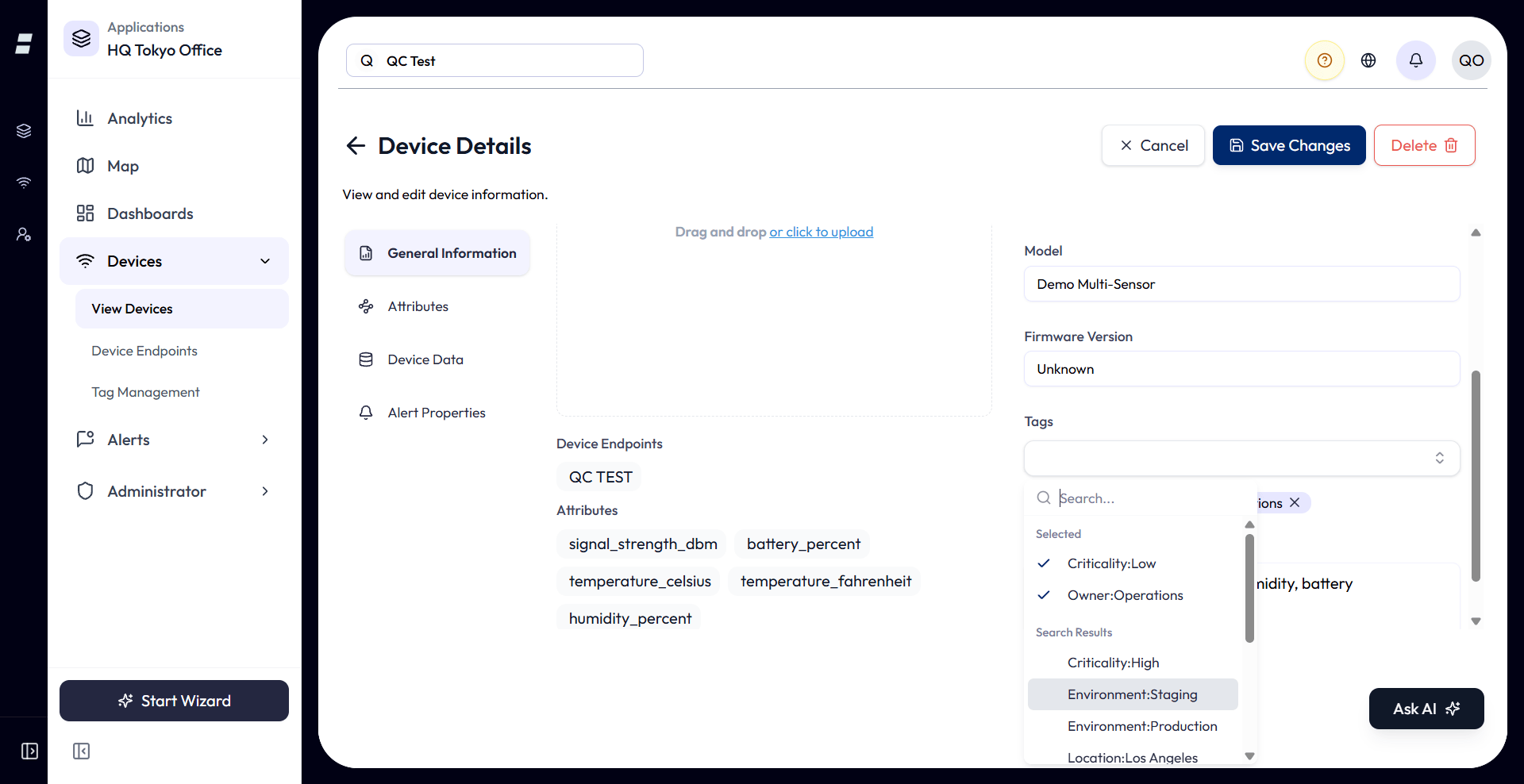
Open a device and go to General Info. The Tags field shows what is assigned and lets you add or remove tags. If none are assigned it reads “No tags assigned”.
- Tags are many-to-many. A device can have many tags, and a tag can be on many devices. The platform shares the tag instead of copying it, so edits update every assigned device.
- One assignment per pair. A given tag can be on a device only once; you cannot add the same tag twice to one device.
- Removing a tag from a device only detaches it from that device. The tag itself stays in Tag Management for reuse.
With Ask AI
You can also ask the assistant, for example put the tag floor:2 on Sensor A. It proposes one existing tag for one device and changes nothing until you select Confirm, which needs permission to update devices. If the tag does not exist yet, the assistant offers to create it first, as a separate proposal. It cannot unassign a tag from one device; deleting the tag removes it from all of them. See Ask AI for the other tag requests the assistant handles.
Filtering devices by tag
Use the Devices list to filter devices by their assigned tags.
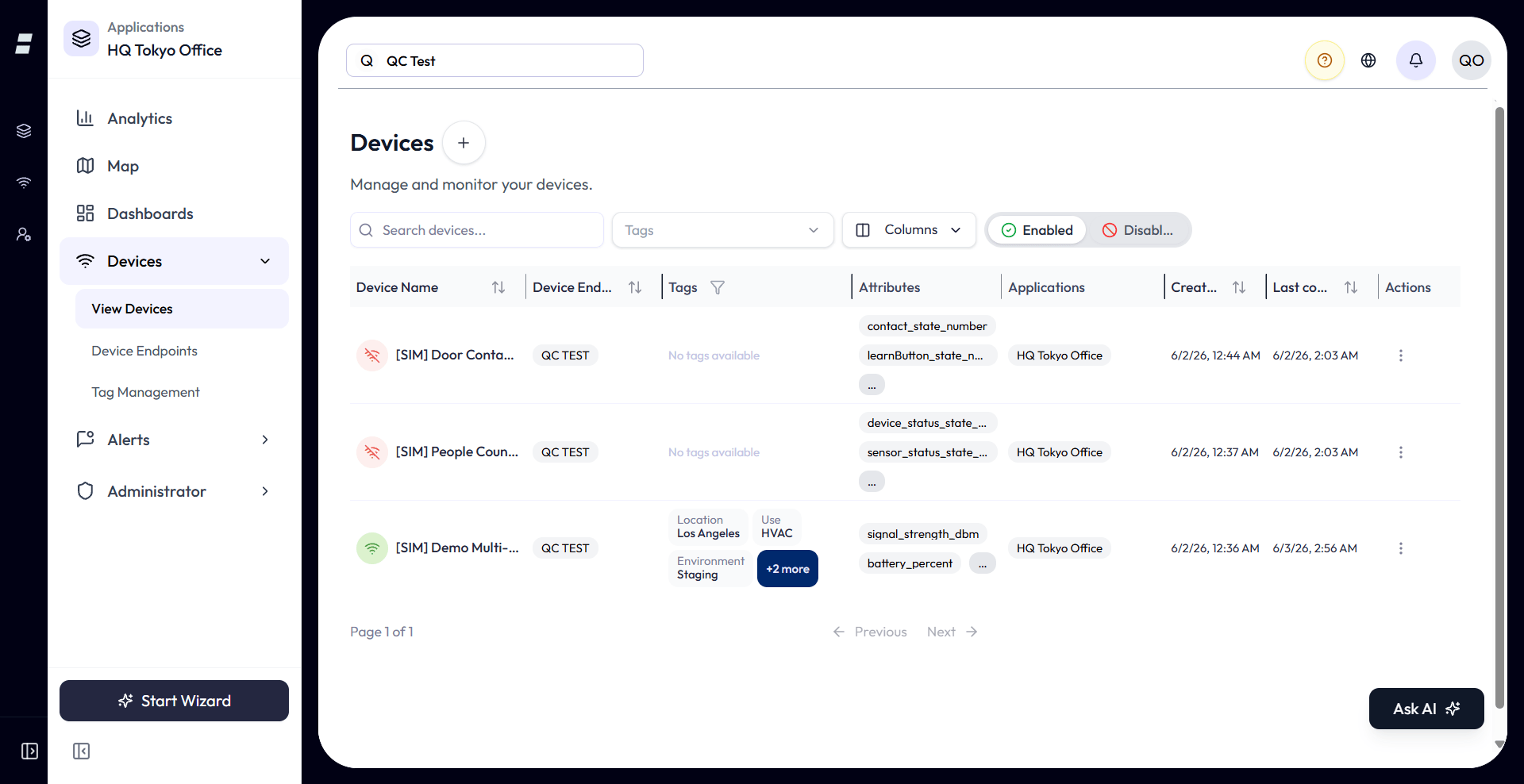
- Tags column. Each device row shows its tags as badges, with the key above the value. If a device has more than three tags, the remaining tags collapse into a +N more indicator.
-
Tags filter. A filter control above the list lets you choose one or more
tags. The options are your existing tags, shown as
key:value. - Multiple tags use AND. Select several tags and the list shows only devices that have every selected tag. To see devices matching either tag, filter one at a time.
-
Shareable URL. The active tag filter is stored in the page address as a
tagsparameter. You can bookmark or share the filtered Devices view, and it reopens with the filter applied.
What tags affect
Tags currently apply only to the areas listed below.
| Area | Do tags apply? |
|---|---|
| Tagging devices | Yes. Devices are the only entity you can tag. |
| Filtering the Devices list | Yes. The main use of tags. |
| Widget calculations | Yes. A numeric (Int or Float) tag can be a variable in a widget formula, except on XY-Chart and Tracking Map location axes. See Widget Calculations for the picker and its rules. |
| Alert conditions | Yes. A condition can compare against a tag’s value, and its formula can use numeric tags as variables. See Alerts. |
| Widget titles, data labels, and alert payload templates |
Yes. A {{tag.key}} token is replaced by the tag’s current
value.
|
| Grouping or scoping endpoints, dashboards, alerts, and analytics | No. These are not tagged, and tags do not group or scope them. |
| Application scoping | Indirect. A tag can be account-level or scoped to one application, which controls where it is offered, but a tag does not assign a device to an application. |
site:warehouse-A and
site:warehouse-B.
Limits and other details
A Tag Name holds up to 25 characters, and each Type caps its value differently. Deleting a tag unassigns it from every device without deleting the devices.
| Limit / behavior | Detail |
|---|---|
| Tag Name length | 1 to 25 characters, required. |
| Value type | One of String, Float, Int, Boolean, Array, JSON (default String). Int/Float must be numbers; Array/JSON must be valid JSON. |
| Tag Value limit |
Required, and set by the Type. String: up to 25 characters.
Int: a whole number up to about 9 quadrillion, exactly
9007199254740991 (or the same figure negative). Float: any
decimal up to roughly 1.8 × 10³⁰⁸, kept to about 17 significant digits and rounded beyond
that. Boolean: true or false only, set with a
toggle. Array and JSON: valid JSON up to 500 characters,
at most 10 levels deep.
|
| Uniqueness | The full Tag Name + Type + Tag Value must be unique within its scope (account, and application when set). |
| Tags per device | No fixed cap; the list view shows the first three and folds the rest into “+N more”. |
| Scope | Account-level (visible everywhere) or application-scoped (visible inside that application plus account-level tags). |
| Delete behavior | Unassigns the tag from all devices. Devices are not deleted. Refused while a widget or alert formula uses the tag. |
- Use consistent Tag Names. Choose names such as Location, Site, Owner, or Role, and keep their values consistent. This makes the Devices filter easier to use.
- Choose the correct scope. Create shared account-level tags from the top-level Tags page. Create application-specific tags from inside the application.
- Editing updates every assignment. Renaming a tag changes it on every device that carries it.
- Filtering is AND. More selected tags means fewer matching devices, not more.